Thursday, June 26, 2014

Class Summary 6-26-2014

Spent the first hour looking into a number of keyboard shortcuts available in Windows and some of the programs that run under Windows like Microsoft Word. Here are some of typical ones.  Others can  be found in the class notes.

Shortcuts for Most Apps:

Ctrl+X Cut the selected text and copy it to the clipboard
Ctrl+C Copy the selected text and copy it to the clipboard
Ctrl+V Paste the contents of the clipboard to the current location
Ctrl+Z Undo the last operation
Ctrl+Y Redo the last operation
Ctrl+S Save the current file
Ctrl+O Open a file
Ctrl+A Select all
Ctrl+P Open the print dialog box
Ctrl+F Find
Ctrl+H Find and replace

Then we discussed many other topics. I cannot think of all of them, but I do remember using YouTube to find out how to print envelopes in LibreOffice.


Saturday, June 21, 2014

Class Summary 6-19-2014

The first hour was spent on a look at Google Docs. I use it for most of my word processing and spreadsheet needs. Details on using it are in the class notes for 6-19. See the link above to access the notes.

Rest of the time was spent on Q&A. One good question was whether or not you should use factory ink cartridges or replacement ones. Had a few different options based on personal experiences. I for one use genuine HP ink in my printer. Some did the same and others shared where they were getting their less costly alternatives.

I wish I had taken some notes because I am at a loss as to the other things we covered. Please help me and I will add some notes.


Monday, June 16, 2014

Creating a Business on Facebook

Found a great video today on creating a business page on Facebook. Well done. Makes it look easy.

http://youtu.be/O9SDy58HBYo

Thursday, June 12, 2014

Class Summary 6-12-2014

Photo

Had a good turnout today for a runthrough on PICTURES.

We looked at various ways to get pictures or images into our PC:

  • From a digital camera by plugging the camera into the PC with a USB cable
  • From a digital camera by extracting the SD card from the camera and plugging it into the PC 
  • From a flip phone by plugging the phone into the PC with a USB cable
  • From a smartphone  by plugging the phone into the PC with a USB cable
  • From a smartphone by emailing individual photos from the phone
  • From a smartphone by using Dropbox to automatically upload images form the phone to your Dropbox
  • From a website by right-clicking and choosing SaveAs
  • From a website by using Greenshot (get it from Ninite.com) and pressing the PrntScrn button on your PC keyboard
We talked about renaming as a group and resizing using the Prishresizer program.

The notes found in the Class Notes explain all we discussed and more. Locate the notes on the link above.

I showed how to use the F11 key to make the browser page full screen. Also reminded the class about the use of Ninite and that the Ctrl + and Ctrl - can be used to make a browser screen larger and smaller. Ctrl 0 brings the size back to normal.

Use the Useful Links button above to locate many of the program downloads we discussed. There is another list at the end of the class notes as well. Please use the links to get Mozy and Dropbox and I will get credit for your download. Thanks.

Saturday, June 7, 2014

Class Summary 6-5-2014

Files and Folders and Libraries and more. That was the theme for the day. Notes can be found at http://www.rwevans.com/cccgc/FilesandFolders6-5-2014.pdf.

Why organize? Gave the example of having kitchen cabinets and putting things away any old way. Some glasses in one cabinet and others scattered around the others. Plates all over the place. Spices in multiple places. You would never to do that, so why do that with your files on your computer. Create folders to store related items. Even folders inside folders.

Use the main folders that come with Windows. (Downloads, Documents, Music, Pictures, Videos) Your downloads all end up in the default folder called Downloads and your documents from programs like Word into a folder called Documents. Use them, but create sub-folders to organize. Do NOT create your folders outside of these default folders or programs like Mozy or iDrive or other cloud backup services will not find them to back them up for you without you pointing those programs to your folder locations.

So instead of copying all your pictures from your camera or smartphone into Pictures and having a thousand pictures to scroll through to fine the ones you want, organize them into sub-folders by creating the sub-folder first and them copying your images from your camera into that folder.

Let's say you went to the beach on 6-2-2014 and have a bunch of picture to upload into your computer.

Pictures -  2011
                2012
                2013
                2014 - Beach

Notice the years are sub-folders to contain pictures for that year. The sub-folder Beach is in the 2014 folder and is where we will keep all our beach related pictures for 2014. Inside that folder we create a folder for 6-6-2-2014 and that is where we will upload the camera pictures to.

Pictures - 2014 - Beach - 6-2-2014

Now finding pictures is as easy as opening the Pictures folder, locating the 2014 folder and then finding the beach pictures.

We also looked at how to copy and move files from one place to another using Cut, Copy, and Paste and by right-dragging the files. Keyboard shortcuts can also be used. Ctrl+X for cuttings, Ctrl+C for copying, and Ctrl+V for pasting.

Touched on maintenance using the programs found on ninite.com (see previous posts on using ninite and the maintenance programs like Glary...)
                           \
We also discussed a number of other things, most of which I do not remember. If you want me to expound on something else we touched on, please let me know and I will add it to this post.

Saturday, May 31, 2014

Class for June 5th

Understanding Files and Folders.

What is a File and what is a Folder What are they and how can I use them to reorganize my stuff? Can I move them, copy them, rename them, or even delete them? And more...

Then we will have our open forum where you can ask any question you have and we will find an answer to it, if we can.

Friday, May 30, 2014

Class Summary 5-29-2014

This was another open forum or in other words a place form members to come and ask any questions and we find the answers as best we can. We each learn as we delve into different aspects of using our computers in whatever version of Windows you happen to have.


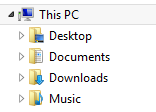
This week we discussed where things go when you download them form the Internet. We often get attachments from others in emails and they go into our computer's hard drive. When we search for programs to add to our system, we download the install programs. Where do they go? Unless you have changed the default location, they end up in a folder called Downloads:


If you are on Windows 8.1, the folder is under This PC. On an older PC it will still be called Downloads but may be under My Computer instead.


Typically a downloaded program will start when the download finishes. If not, or if you want to see those files that were attached to an email you have to locate the Downloads folder and then the file you just added to your PC. Double-click it and it should open.


Is there any reason to keep all the items in Downloads? Not really. Once you have used the file, you may never need to use it again. If it was a picture or a document you do need, you should move it to a more permanent location like Documents or Pictures. If it was an install application, like CCleaner, once you install it there is no reason to keep it. You can download it again at any time. However, if you purchased an application like QuickBooks, Hallmark Card Studio, or some other application you had to pay for I would keep it or at least burn it to a CD in case I had to install it again. After a short time, the software cannot be re-downloaded without paying for it again.


Another question was in regard to hard disk drives. How do we know when they are wearing out? A good clue is when it takes a long time to access anything on it and you see the hard disk access light blinking on and off. Another is when it takes a very long time to boot the system sometimes and other times it seems to boot right up. Could be having issues with reading from some areas of the drive.


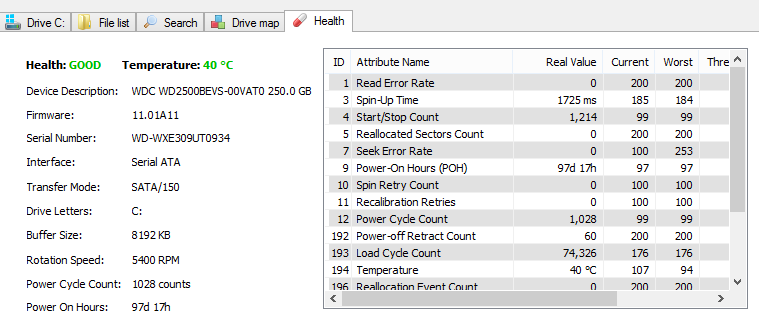
If you download and run Defraggler from the same company CCleaner is from, http://www.piriform.com/download, one of the options is to view the Health of the drive:


You can get a pretty good feel for the use and errors occurring on the drive. As the errors increase it might be a good time to replace the drive.


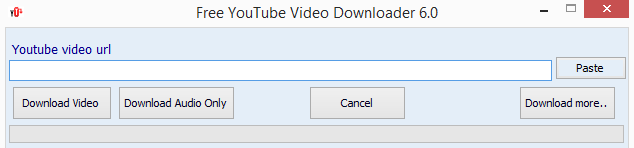
Someone else asked about downloading videos from YouTube. This cannot be done from the YouTube site. You need to download an application to do it. When searching for programs to download a safe site I used is http://download.cnet.com/windows/. There are many applications to choose from and three basic types, free, free to try, and pay for. The YouTube Downloader I ended up with was called Free YouTube Downloader:


To use it access the video on YouTube you want to put on your computer and copy the URL. Then paste it into the box by clicking the Paste button. Then click either the Download Video or if you want the audio only click that button. When it finishes you have the video (or audio) on your computer.


Now the question came up as to how to get that video to someone else. Well you could send them the file, but that would take a lot of time and bandwidth. Why not just give them a link to the video on YouTube? Just copy and paste the link, the URL, from the video on facebook. Here is the link to a video of my wife on YouTube. I just copied it from the YouTube screen while it was playing.


I can put that in an email or even in a document that I am attaching to an email. The recipient just has to click on the link to open the video on their computer.


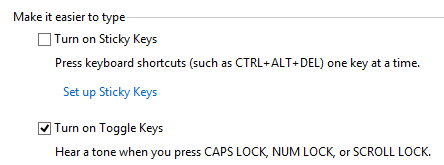
Some noticed that when I hit the CapsLock key my computer beeped. This warns me that I did so and if I did not mean to do that, I tap it again (another beep occurs) and I am back to normal typing. Do make this happen I went to Control Panel > Ease of Access Center > Make the keyboard easier to use


Then I checked the Turn on Toggle Keys box and clicked the Apply button to activate it.


Then we had a Microsoft Word question about how to apply French accents on words. We came across this YouTube video with an easy way to do it https://www.youtube.com/watch?v=reMtZoJf9uw


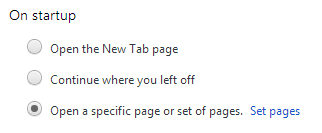
Then we looked at how to set the Home screen on your browser. This is the site that appears when you open your browser. It works a little different depending on which browser you are using. In Google Chrome click the tools button (three horizontal lines in the top right of the window) then click Settings.


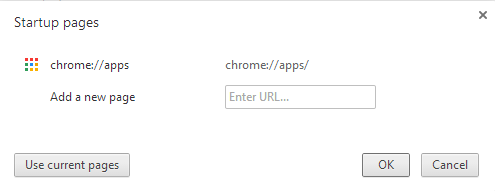
Under On startup click Set pages


Add the URLs for the sites you want opened when Chrome starts.


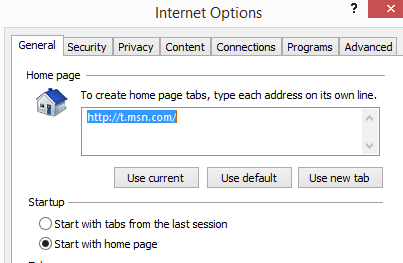
Internet Explorer is a little different. Click the picture of the gear in the upper right corner, then select Internet Options


Like with Chrome, enter the URLs you and opened at startup and click the Start with home page radio button. Then click Apply.


How do we get to display our pictures that are on our PC on our TV screen? If your computer has an HDMI port and your TV also has one, you can use a Male-Male cable to connect the two devices and use the TV as a second monitor. Another approach is to purchase a ChromeCast device to plug into your TV set's HDMI port. After installing an app on your Google Chrome Browser everything you see on your PC can be broadcast through your WiFi connection to your TV set. Works neat and only requires a one time cost of $35 for the device. If you have a Roku box, you can access your Facebook pictures, YouTube videos, Flckr photos and more. This is a one time cost of $49-99 depending on the device you choose. No PC required.