Interested in experimenting?
The Raspberry Pi is a credit-card sized computer that plugs into your TV and a keyboard. It is a capable little computer which can be used in electronics projects, and for many of the things that your desktop PC does, like spreadsheets, word-processing and games. It also plays high-definition video.
You can find them on Amazon in various forms from components to kits.
http://www.raspberrypi.org/
Wednesday, July 30, 2014

Wednesday, July 16, 2014
Mapping in Google Chrome
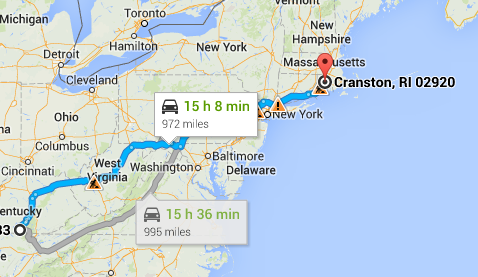
In checking for a route back to RI I discovered a neat shortcut in Google Chrome. Simply type "how far" and then the from and to locations, just the zip code will do. I typed "how far 42633 to 02920" (without the quotes) and here is what popped up:

Clicking on the down arrow under the above results in a step by step set of directions:
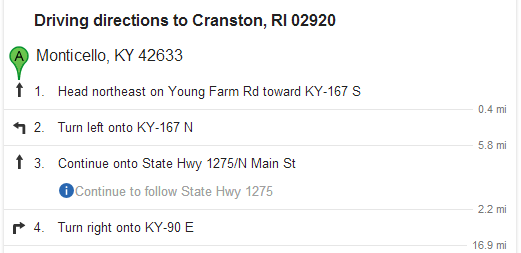
And click on the map and you get right to Google Maps and a drawing of the route:
Tuesday, July 1, 2014
Office talk at the General Meeting 7-1-2014
The meeting started off with a reading of the revised by-laws and a vote to pass them. So I did not get into as much actual demos of the office suites we talked about. But we did cover the similarities and differences of Microsoft, LibreOffice, AbiWord, Windows Live, and Google Docs.
There were lot's of good questions both in the open forum before the meeting and during the Office talk. The class notes contain links for many of the program we talked about.
When we think of Office, most of us think Microsoft. They have done a great job taking over the Office Suites by including their trial package on new computers from many of the hardware vendors. It is probably the best suite out there, but it is also a costly one. The least expensive is the Home and Student edition at $139. But it does not include all the programs in the suite, only Word, Excel, and PowerPoint. Missing is the popular Publisher and Access programs and others. And you can only license it on ONE computer. If you have two computers in the household, you need to pay twice. You now rent their programs by signing up for Office 365.......
Click the Class Notes above to download the rest of the notes from tonight's talk.
Thursday, June 26, 2014
Class Summary 6-26-2014
Spent the first hour looking into a number of keyboard shortcuts available in Windows and some of the programs that run under Windows like Microsoft Word. Here are some of typical ones. Others can be found in the class notes.
Shortcuts for Most Apps:
Ctrl+X Cut the selected text and copy it to the clipboard
Ctrl+C Copy the selected text and copy it to the clipboard
Ctrl+V Paste the contents of the clipboard to the current location
Ctrl+Z Undo the last operation
Ctrl+Y Redo the last operation
Ctrl+S Save the current file
Ctrl+O Open a file
Ctrl+A Select all
Ctrl+P Open the print dialog box
Ctrl+F Find
Ctrl+H Find and replace
Then we discussed many other topics. I cannot think of all of them, but I do remember using YouTube to find out how to print envelopes in LibreOffice.
Saturday, June 21, 2014
Class Summary 6-19-2014
The first hour was spent on a look at Google Docs. I use it for most of my word processing and spreadsheet needs. Details on using it are in the class notes for 6-19. See the link above to access the notes.
Rest of the time was spent on Q&A. One good question was whether or not you should use factory ink cartridges or replacement ones. Had a few different options based on personal experiences. I for one use genuine HP ink in my printer. Some did the same and others shared where they were getting their less costly alternatives.
I wish I had taken some notes because I am at a loss as to the other things we covered. Please help me and I will add some notes.
Monday, June 16, 2014
Creating a Business on Facebook
Found a great video today on creating a business page on Facebook. Well done. Makes it look easy.
http://youtu.be/O9SDy58HBYo
http://youtu.be/O9SDy58HBYo
Thursday, June 12, 2014
Class Summary 6-12-2014

Had a good turnout today for a runthrough on PICTURES.
We looked at various ways to get pictures or images into our PC:
- From a digital camera by plugging the camera into the PC with a USB cable
- From a digital camera by extracting the SD card from the camera and plugging it into the PC
- From a flip phone by plugging the phone into the PC with a USB cable
- From a smartphone by plugging the phone into the PC with a USB cable
- From a smartphone by emailing individual photos from the phone
- From a smartphone by using Dropbox to automatically upload images form the phone to your Dropbox
- From a website by right-clicking and choosing SaveAs
- From a website by using Greenshot (get it from Ninite.com) and pressing the PrntScrn button on your PC keyboard
We talked about renaming as a group and resizing using the Prishresizer program.
The notes found in the Class Notes explain all we discussed and more. Locate the notes on the link above.
I showed how to use the F11 key to make the browser page full screen. Also reminded the class about the use of Ninite and that the Ctrl + and Ctrl - can be used to make a browser screen larger and smaller. Ctrl 0 brings the size back to normal.
Use the Useful Links button above to locate many of the program downloads we discussed. There is another list at the end of the class notes as well. Please use the links to get Mozy and Dropbox and I will get credit for your download. Thanks.
Subscribe to:
Posts (Atom)