These are some thoughts about what we could talk about. Your questions come first. And remember, it does not matter if you think your question is not worth discussing. Ask it anyway. There are many others with the same question. No question is too basic.
Should You Leave Your Laptop Plugged in All the Time?A battery cannot be overcharged. There’s no danger of overcharging a battery if you leave it plugged in all the time. As soon as it hits 100 percent it will cease charging and won’t start again until the voltage falls below a certain level.
https://tinyurl.com/yyom259m
How To Install Kodi On Windows PCHow to install Kodi on Windows PC? Setting up Kodi on your Windows PC XP, 7, 8, or 10, is pretty much straight forward. You download the .exe file from the Kodi website and then install it on your computer. The next steps require you to setup Kodi addons. In this help guide, you can find step-by-step instructions on how to install Kodi on PC. I’ve also included a tutorial that shows you how to easily enable the best Kodi addons on it.
https://tinyurl.com/y5ur8s4v
How to Protect Your Computer from Power ProblemsI run one of my computers and some equipment through an uninterruptible power supply (UPS). The UPS provides the bare minimum needed to keep my network, Wi-Fi, and internet connection up, plus one computer. My laptops and mobile devices, by virtue of being battery-powered themselves, have their own built-in UPS in a sense and need no additional power-loss protection.
https://tinyurl.com/yxklyhcu
Google Photos vs. OneDrive: What’s the Best Backup Tool?
This is a good article and food for thought regarding Google vs Microsoft cloud approaches for saving pictures. I use Google Photos for all my photos and OneDrive for documents and other files I want a backup copy in the cloud.
With Google Photos on your cell phone, all your pictures are uploaded to your Google cloud and at no charge to you. Be sure to NOT select uploading in original form or you will be charged against your free 15 GB of space. OneDrive does not have that option; you are charged for every byte uploaded against your free 5 GB of space. You can purchase additional space from Microsoft. For $2.00 per month, you can add an extra 100 GB to your OneDrive account.
Many people use Google Photos as their photo backup app. But is it really the best backup tool? Does OneDrive also deserve serious consideration? In this article, we compare Google Photos to OneDrive to determine which is the best tool to back up your photos. We’ll compare the two services and help you decide which is right for you.
https://tinyurl.com/y2zubsvd
Don’t Pay for Microsoft Word! Four Reasons to Use Office Online Instead. Microsoft Office is the world’s de facto productivity suite, but did you know that you don’t really need to pay for Microsoft Word and other apps? Thanks to Microsoft Office Online, you can access the most popular Office apps for free.
https://tinyurl.com/yygzsdbe
Classic Operating Systems You Can Access in Your BrowserIf you want to emulate Windows 95, Mac OS X Lion, and more, you’ve come to the right place. Here are eight classic operating systems you can access in your browser.
A good article on the old operating systems but we could not find a link to try them out. If you find the link, let me know.
https://tinyurl.com/y3zpachs
Tuesday, October 29, 2019

Wednesday, October 23, 2019
Computer Club Class Notes 10-22-2019
We had a good turnout at yesterday’s class, including online participants.
Bookmark Bar
The first question was about the favorites or bookmark bar on a browser. How does one make it show?
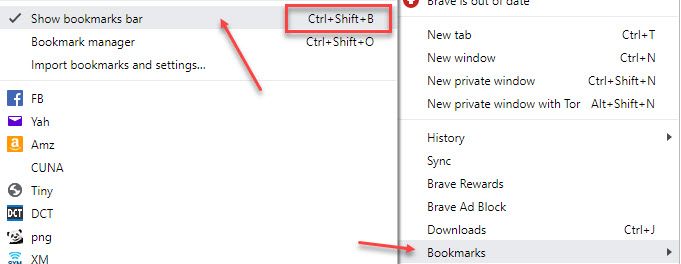
In Chrome/Brave, click the browser menu button ( Chrome,
  Brave), then Bookmarks > Show bookmarks bar. You can also just press Ctrl+Shift+B to turn the bar off or on. This shortcut also works for Edge. Firefox does not have a bookmark bar and the shortcut simply opens a window that shows all bookmarks.
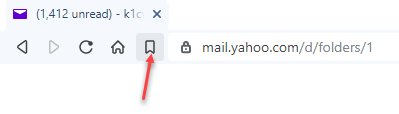
Brave bookmark button
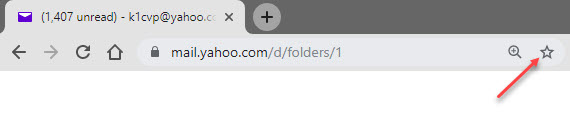
Chrome bookmark button
To have an item appear on the bookmark bar, have the webpage open in the browser and click the bookmark button.
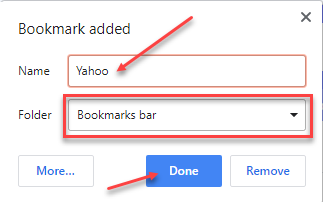
Shorten the name to something useful, select the Bookmarks bar Folder, then click Done. The new shortcut will appear on the Bookmark bar. Since the shortcut will appear with its icon, the name may not be needed. The less room the name is the more shortcuts that appear on the bar.
Edge works like the above except they are called favorites and the bar is a favorites bar.
When you change to another browser and have favorites assigned on your old one, you can import the favorites-shortcuts to the new browser. In the same menu we used to create the shortcut bar, find a selection to import them from another browser.
wikiHow
Learn how to do anything with wikiHow, the world's most popular how-to website. Easy, step-by-step, illustrated instructions for everything. We stumbled onto this site while looking for something on the Internet during class. Check it out at https://www.wikihow.com/Main-Page
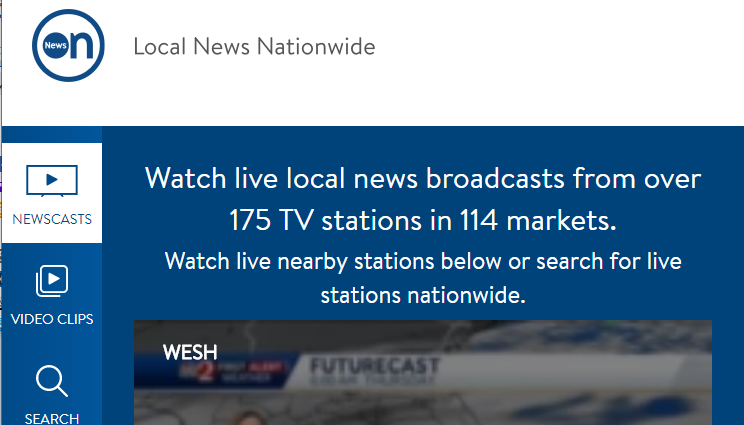
Newson.us
Watch your hometown news live on your desktop, cell phone, tablet, and add it as a station on your Roku or Firestick device.
http://watchnewson.com/
TV Box
It works and now is set up to view movies and more. Let’s take a look at the same box as last week, but with some channels added. It did not work as well as I expected as the channels I added at home did not come with me. I assume it had to do with the limited memory in the box I purchased. However, it was easy to install the latest Kodi and add the programming to it suing the video link below.
https://www.youtube.com/watch?v=C_Ze9ckLOPI
Best Places to Find Free Icon Files
The design world moves at a fast pace, and it’s much easier to download icon files than it is to hire graphic designers to create custom designs.
That’s why many sites offer entire marketplaces filled with free and premium icons. Some even offer hundreds of thousands of icons.
https://tinyurl.com/y58vcqsn
How to Create a Windows Icon
This wikiHow teaches you how to create a shortcut icon for a Windows computer. Desktop shortcuts typically use predetermined icons, but you can create your own icon by using an online converter. If you'd like to create a simple, black-and-white icon from scratch, you can use Microsoft Paint instead.
https://tinyurl.com/y5uyfaua
Dochub
DocHub is an online PDF annotator and document signing platform. DocHub lets users add text, draw, add signatures and make document templates. DocHub can integrate with Dropbox, Google Drive, Gmail and Box accounts.
We showed how to use your cell phone to take a picture of your signature and then add it to a PDF. And how to add text and “white out” text on the PDF.
https://dochub.com/
PDF to TXT
Free and easy to use online PDF to text converter to extract text data from PDF files without having to install any software. Great way to print a webpage as a PDF and then extract just the text.
https://pdftotext.com/
Bookmark Bar
The first question was about the favorites or bookmark bar on a browser. How does one make it show?
In Chrome/Brave, click the browser menu button (
Chrome, Brave), then Bookmarks > Show bookmarks bar. You can also just press Ctrl+Shift+B to turn the bar off or on. This shortcut also works for Edge. Firefox does not have a bookmark bar and the shortcut simply opens a window that shows all bookmarks.Brave bookmark button
Chrome bookmark button
To have an item appear on the bookmark bar, have the webpage open in the browser and click the bookmark button.
Shorten the name to something useful, select the Bookmarks bar Folder, then click Done. The new shortcut will appear on the Bookmark bar. Since the shortcut will appear with its icon, the name may not be needed. The less room the name is the more shortcuts that appear on the bar.
Edge works like the above except they are called favorites and the bar is a favorites bar.
When you change to another browser and have favorites assigned on your old one, you can import the favorites-shortcuts to the new browser. In the same menu we used to create the shortcut bar, find a selection to import them from another browser.
wikiHow
Learn how to do anything with wikiHow, the world's most popular how-to website. Easy, step-by-step, illustrated instructions for everything. We stumbled onto this site while looking for something on the Internet during class. Check it out at https://www.wikihow.com/Main-Page
Newson.us
Watch your hometown news live on your desktop, cell phone, tablet, and add it as a station on your Roku or Firestick device.
http://watchnewson.com/
TV Box
It works and now is set up to view movies and more. Let’s take a look at the same box as last week, but with some channels added. It did not work as well as I expected as the channels I added at home did not come with me. I assume it had to do with the limited memory in the box I purchased. However, it was easy to install the latest Kodi and add the programming to it suing the video link below.
https://www.youtube.com/watch?v=C_Ze9ckLOPI
Best Places to Find Free Icon Files
The design world moves at a fast pace, and it’s much easier to download icon files than it is to hire graphic designers to create custom designs.
That’s why many sites offer entire marketplaces filled with free and premium icons. Some even offer hundreds of thousands of icons.
https://tinyurl.com/y58vcqsn
How to Create a Windows Icon
This wikiHow teaches you how to create a shortcut icon for a Windows computer. Desktop shortcuts typically use predetermined icons, but you can create your own icon by using an online converter. If you'd like to create a simple, black-and-white icon from scratch, you can use Microsoft Paint instead.
https://tinyurl.com/y5uyfaua
Dochub
DocHub is an online PDF annotator and document signing platform. DocHub lets users add text, draw, add signatures and make document templates. DocHub can integrate with Dropbox, Google Drive, Gmail and Box accounts.
We showed how to use your cell phone to take a picture of your signature and then add it to a PDF. And how to add text and “white out” text on the PDF.
https://dochub.com/
PDF to TXT
Free and easy to use online PDF to text converter to extract text data from PDF files without having to install any software. Great way to print a webpage as a PDF and then extract just the text.
https://pdftotext.com/
Thursday, October 17, 2019
Computer Club Class Notes 10-15-2019
We had a number of questions upfront. The one I remember is setting your start page in your browser. The person having the question was using Firefox.
Setting HomeWhen you open a browser, the first website you see appears in the first tab (left tab). This is your Home page. Had you set it to show more than one website, the others will be in the additional tabs to the right. When you click to open an additional tab, that tab will open to the website you assigned which could be a repeat of the Home page or perhaps a blank page.
Let’s see how to do that in Firefox.

Click the menu button in the upper right corner (the three lines)
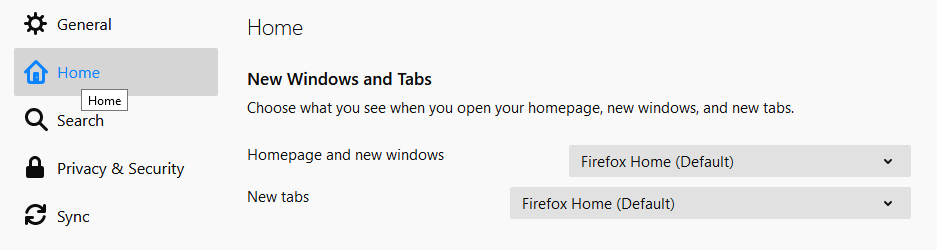
Select Options and then Home
Set the Home page to whatever site you want to see when you start up Firefox. My choice is www.google.com, yours might be www.msn.com or something else.
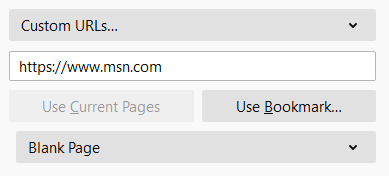
Set New tabs to the page you would like it to open, either same as Home or a Blank Page
When you have set up your preferences, close Firefox and reopen it to see the results.
What about Brave?
Menu button > Settings > scroll to bottom
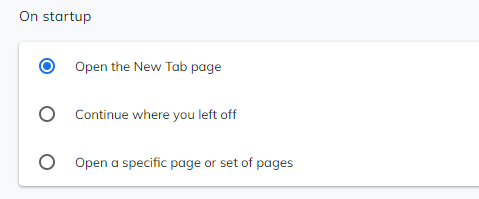
Make your choice, then scroll back to the top
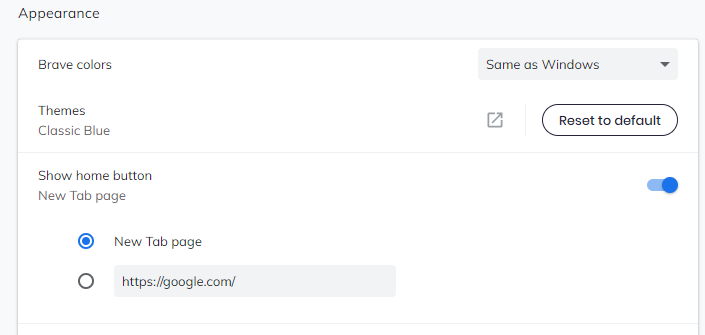
In the Appearance section, set the New Tab page
In Google Chrome, click menu (three dots) > Settings
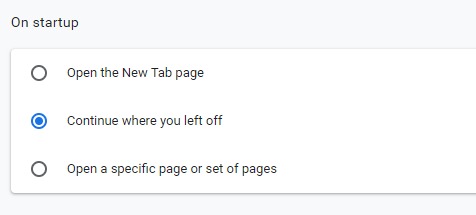
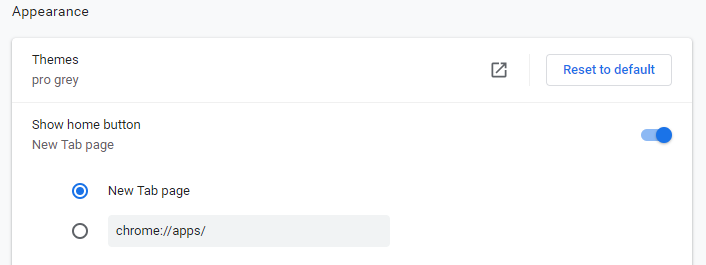
Scroll down to locate the On startup and Appearance sections and make your choices…
In Edge, click menu (three dots) > Settings
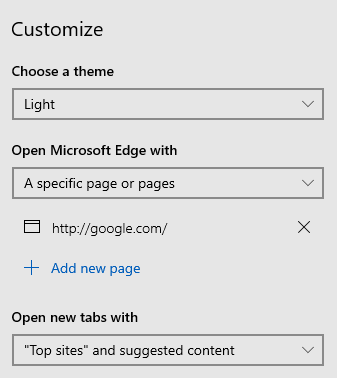
Scroll down to Customize and make your choices.
TV Box
We talked last week about various ways to get Kodi and other stations at home. We talked about cutting the cable. Well, I ordered a TV Box that says it will give us everything…
https://tinyurl.com/y2w6uqqb
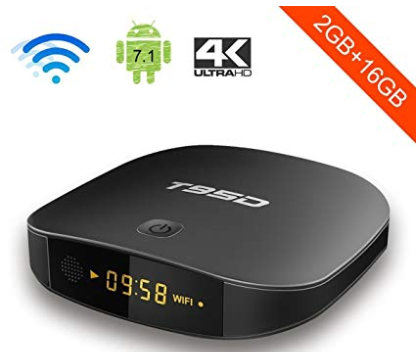
We opened the box and unpacked it. It contained the TV Box, an HDMI cable, a power pack, and a remote. There were NO batteries for the remote!
There were many many TV Boxes to choose from. I picked this one because it had the most memory, for the price range I was looking at--around $25. And I liked the clock…
We set it up using a computer monitor that had HDMI inputs. When we turned it on an easy to follow screen displayed. You would plug it into one of your TV’s HDMI inputs.
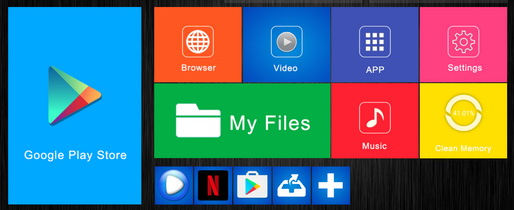
We went to the Settings selection and set up the WiFi using the club’s information. As you can see there are many selections just like on an Android cell phone or tablet. You can install Apps from the Google Play Store and access the Internet to locate others.

This box came with a version of Kodi and we scrolled through the various menu items there. However, there would be additional work to make Kodi fully operational by applying additional software. We located a number of YouTube videos to learn more about Kodi and how to add the additional software that determines the look and feel and what you are able to access--movies, sports, games, etc.
You can install Kodi on your PC, cell phone, or tablet as well as on your streaming devices such as this TV Box and an Amazon Firestick.
YouTube has many videos so select the one that applies to the device you are installing it on.
We watched a number of short videos on Youtube about Kodi. This video shows how to install Movies and TV Shows on Kodi
https://www.youtube.com/watch?v=wKCvCqVMHZg
Setting HomeWhen you open a browser, the first website you see appears in the first tab (left tab). This is your Home page. Had you set it to show more than one website, the others will be in the additional tabs to the right. When you click to open an additional tab, that tab will open to the website you assigned which could be a repeat of the Home page or perhaps a blank page.
Let’s see how to do that in Firefox.
Click the menu button in the upper right corner (the three lines)
Select Options and then Home
Set the Home page to whatever site you want to see when you start up Firefox. My choice is www.google.com, yours might be www.msn.com or something else.
Set New tabs to the page you would like it to open, either same as Home or a Blank Page
When you have set up your preferences, close Firefox and reopen it to see the results.
What about Brave?
Menu button > Settings > scroll to bottom
Make your choice, then scroll back to the top
In the Appearance section, set the New Tab page
In Google Chrome, click menu (three dots) > Settings
Scroll down to locate the On startup and Appearance sections and make your choices…
In Edge, click menu (three dots) > Settings
Scroll down to Customize and make your choices.
TV Box
We talked last week about various ways to get Kodi and other stations at home. We talked about cutting the cable. Well, I ordered a TV Box that says it will give us everything…
https://tinyurl.com/y2w6uqqb
We opened the box and unpacked it. It contained the TV Box, an HDMI cable, a power pack, and a remote. There were NO batteries for the remote!
There were many many TV Boxes to choose from. I picked this one because it had the most memory, for the price range I was looking at--around $25. And I liked the clock…
We set it up using a computer monitor that had HDMI inputs. When we turned it on an easy to follow screen displayed. You would plug it into one of your TV’s HDMI inputs.
We went to the Settings selection and set up the WiFi using the club’s information. As you can see there are many selections just like on an Android cell phone or tablet. You can install Apps from the Google Play Store and access the Internet to locate others.
This box came with a version of Kodi and we scrolled through the various menu items there. However, there would be additional work to make Kodi fully operational by applying additional software. We located a number of YouTube videos to learn more about Kodi and how to add the additional software that determines the look and feel and what you are able to access--movies, sports, games, etc.
You can install Kodi on your PC, cell phone, or tablet as well as on your streaming devices such as this TV Box and an Amazon Firestick.
YouTube has many videos so select the one that applies to the device you are installing it on.
We watched a number of short videos on Youtube about Kodi. This video shows how to install Movies and TV Shows on Kodi
https://www.youtube.com/watch?v=wKCvCqVMHZg
Wednesday, October 9, 2019
Computer Club Class Notes 10-8-2019

Alternate Office AppsI use Google “Office” Google Drive (Docs, Spreadsheet, etc) which is free with a free Google account. It works great on my PC, my Chromebook, on Linux Mint, and on my cell phones, iPhone and Android.
I also like LibreOffice available on ninite.com and WPS which is available at their site, wps.com
Setting A Restore Point And WhySystem Restore is an awesome system recovery tool, and it's included with Windows for free. It's the ideal solution for rolling back bad drivers, fixing when buggy software breaks your PC, or simply rolling you back to a previous point in time. We looked at how to create a restore point and how to recover from one.
https://tinyurl.com/y6znj4nk
Kodi
What is Kodi? Kodi is free, open-source software designed specifically with home entertainment in mind – and it's perfect if you're a fan of movies, sports, films, and TV shows. There are many YouTube videos showing how to set it up on your PC, on a Firestick, and other devices. Simply put, as long as you have Internet access you can cut the cable and watch pretty much everything.
https://www.youtube.com/watch?v=7mm1plsrWNc
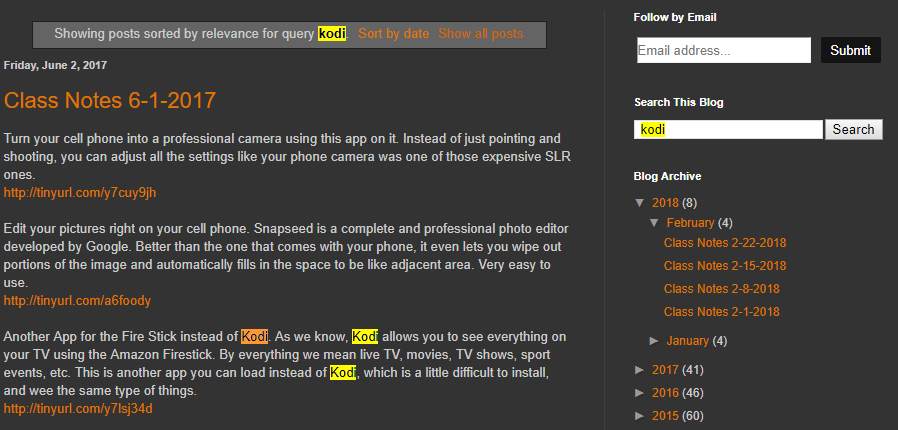
Click the following link to see all the past notes that contained info on Kodi. Then Ctrl+F and type Kodi. All the words Kodi will now be highlighted and easy to locate.
http://tinyurl.com/yatgumyb
Roku News ChannelIf you have a Roku box, you can add the streaming channel NewsON for free and watch your local news TV stations.
Click the following link to see all the past notes that contained info on Kodi. Then Ctrl+F and type Kodi. All the words Kodi will now be highlighted and easy to locate.
http://tinyurl.com/yatgumyb
Roku News ChannelIf you have a Roku box, you can add the streaming channel NewsON for free and watch your local news TV stations.
https://channelstore.roku.com/details/71845/newson
MXQ TV BoxThere are many of these on Amazon fr from about $25 and up. Turns your TV into a smart TV and includes Kodi so you can access just about anything.
MXQ TV BoxThere are many of these on Amazon fr from about $25 and up. Turns your TV into a smart TV and includes Kodi so you can access just about anything.
Android tv box MXQ
Move Contacts from one email provider to anotherThis one can be tricky. You have to go to your previous provider where you still have a working account and export the contact list to a file. Then you can open the new provider’s email and import your list.
Create an album on Google PhotosPictures are stored in the Google Cloud in the order you upload them. They are accessible using search in many different ways. Search on a date. Search on location. Search on a face (uses a very accurate facial recognition algorism). Search on type of content, like dog, boart, food, etc.
You can create an album (like a folder) and it will hold shortcuts to the picture you desire to be in an album. Say you take a bunch of pictures on Thanksgiving.

Create a thanksgiving album and then find all your thanksgiving pictures and videos. Select them and then add them to the thanksgiving album.
How To Download Google Photos To A Folder On My PcQ: I have the photos uploaded from a cell phone to google photos. I can pull them up and see them on my computer. I want to download them to my computer so that I can put them in My Pictures.
A: Go to Google Photos and select the pictures to be downloaded by placing a checkmark in the circle in each picture by clicking on the circle. If you have a group of pictures, check the first one. Then scroll down to the last and holding the shift key down, click the last one and all will be selected.
Then click the menu button (three dots in the upper right) and select Download (or Shift+D) and they will all come down as a zip file. It will go to your download folder. Double click it to see the files.

Then click Extract all and tell it to place the extracted folder in your My Pictures folder, or whatever location you choose.
You can create an album (like a folder) and it will hold shortcuts to the picture you desire to be in an album. Say you take a bunch of pictures on Thanksgiving.
Create a thanksgiving album and then find all your thanksgiving pictures and videos. Select them and then add them to the thanksgiving album.
How To Download Google Photos To A Folder On My PcQ: I have the photos uploaded from a cell phone to google photos. I can pull them up and see them on my computer. I want to download them to my computer so that I can put them in My Pictures.
A: Go to Google Photos and select the pictures to be downloaded by placing a checkmark in the circle in each picture by clicking on the circle. If you have a group of pictures, check the first one. Then scroll down to the last and holding the shift key down, click the last one and all will be selected.
Then click the menu button (three dots in the upper right) and select Download (or Shift+D) and they will all come down as a zip file. It will go to your download folder. Double click it to see the files.
Then click Extract all and tell it to place the extracted folder in your My Pictures folder, or whatever location you choose.
How To Change Browser Download Folder LocationHave you ever wanted to know how to change the download folder your browser uses? I know I have, and recently someone asked me where the downloads go.
https://tinyurl.com/yxkzlkrr
Order Photo Prints Within Google PhotosGoogle announced a new feature in Google Photos this month … Printing! This has been a highly requested feature. Apparently lots of people still want a photo they can hold in their hand, put in a binder or add to the fridge with a magnet. With just a couple of clicks and 25 cents per photo, you can pick up your 4X6 prints on the same day at a Walmart or CVS of your choosing.
https://tinyurl.com/y44t4y6l
How To Download YouTube Videos With VLCYouTube has declared war on downloading videos from its site. Most downloading programs and extensions no longer work but you can still use VLC.
https://tinyurl.com/yynmmsne
How To Hide The Search Box On Windows 10I was playing on my laptop the other day and looked at the Taskbar at the bottom of my screen. Nothing new but I wondered if I could make any adjustments to it. The one change I really wanted to change was removing the Search Box. This is the one thing I don’t like hanging out on the bottom of my screen. After researching this, I found out there are many things that you can customize on your Taskbar. Since I now know how to do this, I would show you how to hide the Search Box and then give you a bonus of where you can make a few more adjustments. Open Windows 10 and let us start learning.
https://tinyurl.com/y5juxub6
Tuesday, September 24, 2019
Computer Club Class Notes 9-24-2019
How to Restore the Recycle Bin Icon in Windows 10
Select the Start button, then select Settings. Or, right-click on the desktop and choose Personalize.
Select Personalization > Themes > Desktop icon settings.
Select the Recycle Bin checkbox > Apply.
Ninite
A great way to update and install a number of useful programs. We have discussed this many times in the past. This is what we use to install the maintenance programs we recommend you use weekly.
Superantispyware
Malwarebytes
Glary Utilities
See https://tinyurl.com/y5khjplq for more on using Ninite
CCleaner
This must be initially downloaded from ccleaner.com. Then when you open it to run each week, if a newer version is available download and install it. When asked to purchase just click “no thanks” then choose the free version.
See more at https://tinyurl.com/yxa8uypr and some good how-to’s https://tinyurl.com/y6smyzo2
Place Icon on Desktop
Open the website you want an icon on the desktop for in Chrome or Brave.
Click the menu button (3 dots or dashes in u[[er right)
More tools > Create shortcut
Give it a name
Locate it on your desktop
Power Options
Windows comes with default power options that cause the computer to got to sleep after so many minutes or the screen to turn off. Also what happens when you shut the cover on a laptop. Let’s look at how to change those.
Win+I > type “power” > select power & sleep then adjust settings OR...
Win+I > type “lid” > select change what closing the lid does then adjust settings
Cut/Copy/Paste and the new Win+V
Except for the later, these shortcuts have been used for decades to copy and move files and folders. Let’s review using them and the click-shift method of selecting. Before 1903 the clipboard could only hold the last thing copied to it. When pasting, Win+V opens a list of everything sent to the clipboard since the last restart or when it was cleared,
We used notepad to demonstrate using Ctrl+C, Ctrl+X, Ctrl+V and Ctrl+Z
Change the mouse look and speed
Windows comes with a tiny mouse pointer. You can change that and it's color and the speed it moves across the screen.
Ctrl+I > type “mouse” > Change your mouse settings then click Additional mouse settings
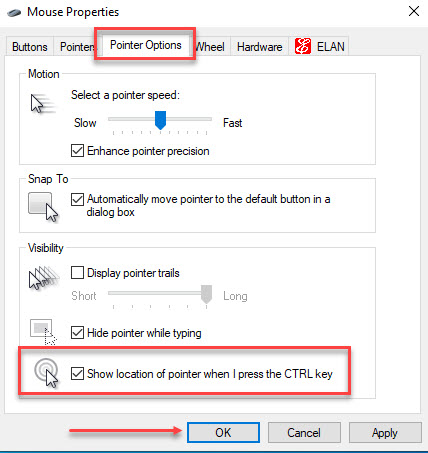
Mouse locator
Ever have trouble locating the mouse? It is there somewhere but you can’t see it. One simple switch and hitting the ctrl key will display flashing circles around the pointer.
Desktop pictures or not
Windows displays a number of caned images at the start screen and in the desktop background. You do not have to settle for the defaults. You can even use your own pic
Win+U > Background settings
Backup reminder
Let’s talk about the need for doing backups and the number of ways to do that.
Copy to flash drive
Copy to DVD
EaseUS image
OneDrive
DropBox
PDF to TXT
Free and easy to use online PDF to text converter to extract text data from PDF files without having to install any software.
You upload a PDF with photos and text and it returns a text file of just the words. Great for extracting data from a PDF.
https://pdftotext.com/
Where are my photos?
Most of us take pictures and even short movies right on our cell phones. Three are many questions about photos.
How do we get those over to our computer?
How do we send them to others?
Can I edit them on my phone or on my computer?
Why are they so large?
How do I download a picture from Facebook?
How do I save a picture from an email?
What do I do? I use Google Photos on my phone so every picture I take is stored in the Google Cloud at no charge but having a free Google account.
Pixlr
Experience smarter and faster photo editing. Pixlr X is the only photo editor you need for quick yet professional edits. Designed with just the right amount of easy to navigate photo editing tools, you are about to experience the next best online image editor built with cutting edge technology.
This needs Adobe Flash installed. Works great with high-end edits and more. A free “photshop” like app.
https://pixlr.com/
Select the Start button, then select Settings. Or, right-click on the desktop and choose Personalize.
Select Personalization > Themes > Desktop icon settings.
Select the Recycle Bin checkbox > Apply.
Ninite
A great way to update and install a number of useful programs. We have discussed this many times in the past. This is what we use to install the maintenance programs we recommend you use weekly.
Superantispyware
Malwarebytes
Glary Utilities
See https://tinyurl.com/y5khjplq for more on using Ninite
CCleaner
This must be initially downloaded from ccleaner.com. Then when you open it to run each week, if a newer version is available download and install it. When asked to purchase just click “no thanks” then choose the free version.
See more at https://tinyurl.com/yxa8uypr and some good how-to’s https://tinyurl.com/y6smyzo2
Place Icon on Desktop
Open the website you want an icon on the desktop for in Chrome or Brave.
Click the menu button (3 dots or dashes in u[[er right)
More tools > Create shortcut
Give it a name
Locate it on your desktop
Power Options
Windows comes with default power options that cause the computer to got to sleep after so many minutes or the screen to turn off. Also what happens when you shut the cover on a laptop. Let’s look at how to change those.
Win+I > type “power” > select power & sleep then adjust settings OR...
Win+I > type “lid” > select change what closing the lid does then adjust settings
Cut/Copy/Paste and the new Win+V
Except for the later, these shortcuts have been used for decades to copy and move files and folders. Let’s review using them and the click-shift method of selecting. Before 1903 the clipboard could only hold the last thing copied to it. When pasting, Win+V opens a list of everything sent to the clipboard since the last restart or when it was cleared,
We used notepad to demonstrate using Ctrl+C, Ctrl+X, Ctrl+V and Ctrl+Z
Change the mouse look and speed
Windows comes with a tiny mouse pointer. You can change that and it's color and the speed it moves across the screen.
Ctrl+I > type “mouse” > Change your mouse settings then click Additional mouse settings
Mouse locator
Ever have trouble locating the mouse? It is there somewhere but you can’t see it. One simple switch and hitting the ctrl key will display flashing circles around the pointer.
Desktop pictures or not
Windows displays a number of caned images at the start screen and in the desktop background. You do not have to settle for the defaults. You can even use your own pic
Win+U > Background settings
Backup reminder
Let’s talk about the need for doing backups and the number of ways to do that.
Copy to flash drive
Copy to DVD
EaseUS image
OneDrive
DropBox
PDF to TXT
Free and easy to use online PDF to text converter to extract text data from PDF files without having to install any software.
You upload a PDF with photos and text and it returns a text file of just the words. Great for extracting data from a PDF.
https://pdftotext.com/
Where are my photos?
Most of us take pictures and even short movies right on our cell phones. Three are many questions about photos.
How do we get those over to our computer?
How do we send them to others?
Can I edit them on my phone or on my computer?
Why are they so large?
How do I download a picture from Facebook?
How do I save a picture from an email?
What do I do? I use Google Photos on my phone so every picture I take is stored in the Google Cloud at no charge but having a free Google account.
Pixlr
Experience smarter and faster photo editing. Pixlr X is the only photo editor you need for quick yet professional edits. Designed with just the right amount of easy to navigate photo editing tools, you are about to experience the next best online image editor built with cutting edge technology.
This needs Adobe Flash installed. Works great with high-end edits and more. A free “photshop” like app.
https://pixlr.com/
Wednesday, September 18, 2019
Computer Club Notes 9-17-2019
Another good afternoon both online with those away and those who joined us live at the club. We had a number of questions and conversations before getting to look at the items I had bulleted in my email.
Desktop Shortcuts for Website
See https://davescomputertips.com/elderly-computing-tip/
Some shortcuts we used today:
F11 while in a browser removes the top lines like the address bar and shortcut bar to give more room for the page itself. F11 to toggle back
Win+D hides all open windows so you can see the desktop. Win+D to toggle the windows back.
Win+I opens the Settings window
Copy/Move
Getting files/folders off a device plugged into your PC--USB flash drive, camera, SD card, CD, audio recorder, etc. The device will open in File Manager and look like a disk drive with floders and files. To move that data off the external device onto your PC, left-drag the file or folder to wherever you want it to reside on your PC. Since the from device is external, left -drag will copy the data. It will end up on your PC and still remain on your device. If you are moving from one area on a device (PC or external) to another area on the same device, left-drag will move it. If you right-drag instead of left, an options menu will pop up asking what you want to do--move, copy, create a shortcut.
Ctrl+C to copy what is selected
Ctlr+X to copy what is selected and remove the selected item
Ctrl+V to paste the last thing selected
Ctrl+Z to undo the last action
Ctrl+Y to redo the last action
Win+V to scroll through the clipboard
About Defragging
Defrag is a way to put fragmented files back together on the hard drive. It speeds up access to files and frees up available space on the drive. Windows 10 does a defrag when the system is idle. However, you may run it on your own. I like the Defrag that is in Glary. CCleaner has one as well. To access the one in Windows: Win+I > type “defrag” and click to open the Optimize Drives window.
Photo Size
When you take a picture the size of the file depends on the quality of the image. An outdoor photo generally is larger than one with less light. The size is also determined by the pixel size your camera is designed to create. Most cell phones make about a 15 MP image. This creates a file size of 2-3 MB. When you send this by email you should resize the image so it does not take such a long time to send. Some email carriers have a limit on the total size of attachments.
When you upload or use the Google Photos app on your cell phone, your images will upload in their original size and you will be charged for space on Google Drive. If you select to allow Google to reduce the size of the image, you will not be charged. The size they reduce it to is still quite large. But if you download an image from Photos and compare it to the original you will see the difference.
The conclusion of our discussion was that is we have pictures that we want to retain the high quality in, keep them in a folder on your hard drive or even in OneDrive as it does not reduce the size/quality of the images.
Capture Video Playing On The PC
We did not find this during class. With Windows 10 you can capture your screen for later playback using these steps.
Switch to Settings>Gaming>Game DVR.
Set up your audio and video quality settings.
When you're ready to record, open the Game Bar with Win+G.
Click “yes, this a game”
Record your screen capture video.
Find your video in Videos>Captures.
Try it out and let me know how it works… Here is a good article about it:
Windows 10 has a built-in free screen recorder
You've very probably been using Windows 10 for a long time now, but that doesn't mean that you've discovered everything it has to offer. The operating system is packed with features, but there are some that are hidden away to the extent that they could be considered secrets.
https://tinyurl.com/y55oj853
How to create a Bootable Linux CD
First, you need to download the ISO file for the version of Linux you want to create a boot disk from. Here is a link to downloading the latest Mint ISO:
https://linuxmint.com/download.php
Be sure to choose the version for your PC, 32 or 64 bit. Now that you have it on your PC (probably in Downloads) you need to burn it to a CD.
Insert a blank DVD into your Optical drive. You may see a popup window asking you what to do with the Disc, close the window as you do not need it.
Locate the ISO image then Right-Click and select 'Burn disc image'.
Check 'Verify disc after burning' and click 'Burn'.
Take the burned DVD and boot from it. You will see a live session of that Linux OS running in RAM not having any effect on your Windows OS or your hard drive.
How To Start Word In Safe Mode
Even though it is highly unusual to encounter stability issues with Microsoft Word, it does happen on occasion. If Word is not starting properly, you can start it in Safe Mode to try to sort out what the problem may be.
We did not get into this as nobody in the class was actually using Word. If you are, check it out. It might become useful to you in the future.
http://tinyurl.com/yyxsfkt8
How to disable Google Chrome Software Reporter Tool
Software Reporter Tool is a Google Chrome standalone process that monitors your Chrome install and reports if any add-ons are interfering with the normal functioning of the browser. The tool isn’t connected to the web but mainly used by the browser to recognize programs that may conflict with it. It’s visible as a 54Kb executable named “software_reporter_tool.exe“. If you face a high CPU usage for this process or if you frequently see a message Google Chrome Software Reporter Tool has stopped working; you might want to disable or remove it. Here is how you can do it.
This is something that could slow down processing. It does require some technical ease so not everyone should attempt some of these changes.
https://tinyurl.com/y3h3a5uy
Alternative Web Browsers
Using a less-popular web browser can offer benefits not found in the more commonly used software, such as greater customization and privacy.
I use Brave and am very happy with it. If I find a web site that will not work right in Brave or another browser I use Edge. Yes, I know Edge. Web sites are generally created to use Edge because it is the one that comes with Windows.
This article shows you a number of other browsers, each with its own special features. Check them out and you might find one just for you.
https://tinyurl.com/yydhqdn8
How to Import an Old Email Account Into GmailIf you recently switched to Gmail, but want to import all your old emails into your account, Google makes it a breeze. Automatically transfer messages and contacts from one email address to the other within minutes.
My advice is to NOT use the email that your service provider supplied you. Ie: @comcast.net, @embarqmail.com. I use @yahoo.com and @gmail.com.
My provider is Comcast so I do have an email address with them. One feature in all email providers is to allow your email to be forwarded to another email address. I forward all others to my Yahoo account.
If you decide to move to another state you will have to get a new provider. Or you may just want to switch. Your new provider will assign you a new email address. If you have an internet email such as Gmail all you have to do is forward your new email to the Gmail account. Nothing changes with your email. All your contacts still know you at your Gmail address.
If you had a provider email address like an @comcast.net you would have to let all your contacts know the new email address because when you cancel that Comcast account you will not be able to receive emails there any more.
This article shows how you can use a new feature in Gmail to transfer your email including your contacts and the actual emails from your old account to your Gmail account. You don’t lose anything. You will still have to inform your contacts of the move. Do NOT cancel the old account until you have made the transfer.
https://tinyurl.com/y49555tx
Tab Notes lets you write and save notes in Firefox and ChromeType something in the page, it doesn't get simpler than this. You can use it to create as many notes as you want. To add a new note, click on the hamburger menu icon on the left to bring up the sidebar, and then select the "Plus" button. And since it works in the browser, it uses the default spell-check tool of the browser.
This is an extension that makes a notepad available to you. What you type is saved as you type. This makes it easy to take notes as you are in your browser. I use a website called notepad.pw and have that tab open at all times,
https://tinyurl.com/y6f58yz4
Desktop Shortcuts for Website
See https://davescomputertips.com/elderly-computing-tip/
Some shortcuts we used today:
F11 while in a browser removes the top lines like the address bar and shortcut bar to give more room for the page itself. F11 to toggle back
Win+D hides all open windows so you can see the desktop. Win+D to toggle the windows back.
Win+I opens the Settings window
Copy/Move
Getting files/folders off a device plugged into your PC--USB flash drive, camera, SD card, CD, audio recorder, etc. The device will open in File Manager and look like a disk drive with floders and files. To move that data off the external device onto your PC, left-drag the file or folder to wherever you want it to reside on your PC. Since the from device is external, left -drag will copy the data. It will end up on your PC and still remain on your device. If you are moving from one area on a device (PC or external) to another area on the same device, left-drag will move it. If you right-drag instead of left, an options menu will pop up asking what you want to do--move, copy, create a shortcut.
Ctrl+C to copy what is selected
Ctlr+X to copy what is selected and remove the selected item
Ctrl+V to paste the last thing selected
Ctrl+Z to undo the last action
Ctrl+Y to redo the last action
Win+V to scroll through the clipboard
About Defragging
Defrag is a way to put fragmented files back together on the hard drive. It speeds up access to files and frees up available space on the drive. Windows 10 does a defrag when the system is idle. However, you may run it on your own. I like the Defrag that is in Glary. CCleaner has one as well. To access the one in Windows: Win+I > type “defrag” and click to open the Optimize Drives window.
Photo Size
When you take a picture the size of the file depends on the quality of the image. An outdoor photo generally is larger than one with less light. The size is also determined by the pixel size your camera is designed to create. Most cell phones make about a 15 MP image. This creates a file size of 2-3 MB. When you send this by email you should resize the image so it does not take such a long time to send. Some email carriers have a limit on the total size of attachments.
When you upload or use the Google Photos app on your cell phone, your images will upload in their original size and you will be charged for space on Google Drive. If you select to allow Google to reduce the size of the image, you will not be charged. The size they reduce it to is still quite large. But if you download an image from Photos and compare it to the original you will see the difference.
The conclusion of our discussion was that is we have pictures that we want to retain the high quality in, keep them in a folder on your hard drive or even in OneDrive as it does not reduce the size/quality of the images.
Capture Video Playing On The PC
We did not find this during class. With Windows 10 you can capture your screen for later playback using these steps.
Switch to Settings>Gaming>Game DVR.
Set up your audio and video quality settings.
When you're ready to record, open the Game Bar with Win+G.
Click “yes, this a game”
Record your screen capture video.
Find your video in Videos>Captures.
Try it out and let me know how it works… Here is a good article about it:
Windows 10 has a built-in free screen recorder
You've very probably been using Windows 10 for a long time now, but that doesn't mean that you've discovered everything it has to offer. The operating system is packed with features, but there are some that are hidden away to the extent that they could be considered secrets.
https://tinyurl.com/y55oj853
How to create a Bootable Linux CD
First, you need to download the ISO file for the version of Linux you want to create a boot disk from. Here is a link to downloading the latest Mint ISO:
https://linuxmint.com/download.php
Be sure to choose the version for your PC, 32 or 64 bit. Now that you have it on your PC (probably in Downloads) you need to burn it to a CD.
Insert a blank DVD into your Optical drive. You may see a popup window asking you what to do with the Disc, close the window as you do not need it.
Locate the ISO image then Right-Click and select 'Burn disc image'.
Check 'Verify disc after burning' and click 'Burn'.
Take the burned DVD and boot from it. You will see a live session of that Linux OS running in RAM not having any effect on your Windows OS or your hard drive.
How To Start Word In Safe Mode
Even though it is highly unusual to encounter stability issues with Microsoft Word, it does happen on occasion. If Word is not starting properly, you can start it in Safe Mode to try to sort out what the problem may be.
We did not get into this as nobody in the class was actually using Word. If you are, check it out. It might become useful to you in the future.
http://tinyurl.com/yyxsfkt8
How to disable Google Chrome Software Reporter Tool
Software Reporter Tool is a Google Chrome standalone process that monitors your Chrome install and reports if any add-ons are interfering with the normal functioning of the browser. The tool isn’t connected to the web but mainly used by the browser to recognize programs that may conflict with it. It’s visible as a 54Kb executable named “software_reporter_tool.exe“. If you face a high CPU usage for this process or if you frequently see a message Google Chrome Software Reporter Tool has stopped working; you might want to disable or remove it. Here is how you can do it.
This is something that could slow down processing. It does require some technical ease so not everyone should attempt some of these changes.
https://tinyurl.com/y3h3a5uy
Alternative Web Browsers
Using a less-popular web browser can offer benefits not found in the more commonly used software, such as greater customization and privacy.
I use Brave and am very happy with it. If I find a web site that will not work right in Brave or another browser I use Edge. Yes, I know Edge. Web sites are generally created to use Edge because it is the one that comes with Windows.
This article shows you a number of other browsers, each with its own special features. Check them out and you might find one just for you.
https://tinyurl.com/yydhqdn8
How to Import an Old Email Account Into GmailIf you recently switched to Gmail, but want to import all your old emails into your account, Google makes it a breeze. Automatically transfer messages and contacts from one email address to the other within minutes.
My advice is to NOT use the email that your service provider supplied you. Ie: @comcast.net, @embarqmail.com. I use @yahoo.com and @gmail.com.
My provider is Comcast so I do have an email address with them. One feature in all email providers is to allow your email to be forwarded to another email address. I forward all others to my Yahoo account.
If you decide to move to another state you will have to get a new provider. Or you may just want to switch. Your new provider will assign you a new email address. If you have an internet email such as Gmail all you have to do is forward your new email to the Gmail account. Nothing changes with your email. All your contacts still know you at your Gmail address.
If you had a provider email address like an @comcast.net you would have to let all your contacts know the new email address because when you cancel that Comcast account you will not be able to receive emails there any more.
This article shows how you can use a new feature in Gmail to transfer your email including your contacts and the actual emails from your old account to your Gmail account. You don’t lose anything. You will still have to inform your contacts of the move. Do NOT cancel the old account until you have made the transfer.
https://tinyurl.com/y49555tx
Tab Notes lets you write and save notes in Firefox and ChromeType something in the page, it doesn't get simpler than this. You can use it to create as many notes as you want. To add a new note, click on the hamburger menu icon on the left to bring up the sidebar, and then select the "Plus" button. And since it works in the browser, it uses the default spell-check tool of the browser.
This is an extension that makes a notepad available to you. What you type is saved as you type. This makes it easy to take notes as you are in your browser. I use a website called notepad.pw and have that tab open at all times,
https://tinyurl.com/y6f58yz4
Tuesday, September 10, 2019
Computer Club Class Notes 9-10-2019
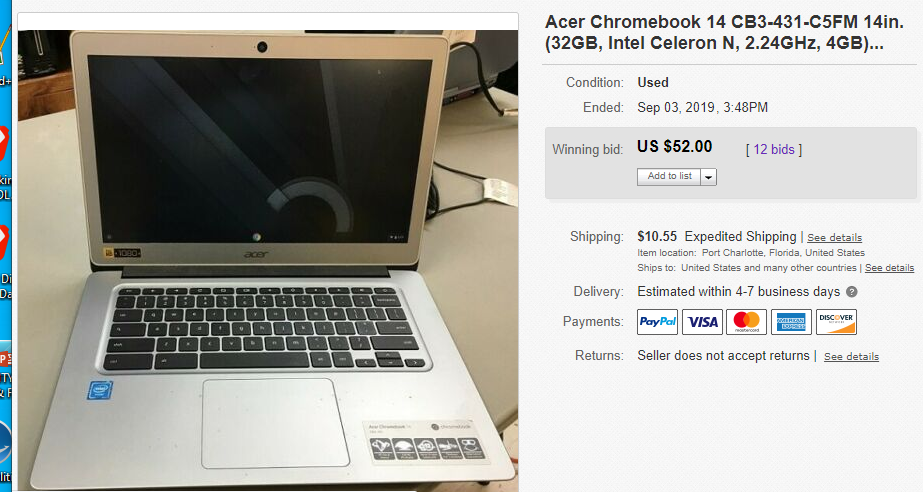
Last time we met we saw how to place an item for sale on eBay. It was a Chromebook that was working with an external keyboard as many of the keys on the device were non-working. We posted it as such on a seven-day auction. It was a slow start but the item sold for $52 in the last hour of bidding.
I was asked which backup program I prefer -- Macrium or EaseUS. I like them both but find EaseUS to use; fewer clicks to use it. Both work equally as good. I have written two articles about backing up and restoring using EaseUS.
Backup https://tinyurl.com/y5zvphmf
Restore https://tinyurl.com/y35lxqex
The file created is a compressed file that can only be opened with the program that created it. To do so requires you have the program that created it installed. Then you can double click the image file and view its contents.
Free HTML/WYSIWYG Online Editor
This tool was designed to make you extremely fast and efficient in HTML Editing. It's not for creating complete websites, therefore it does not create HTML head and body tags, but the body content only. The Web Editor is intended for all people who are in need of formatted HTML in their applications, websites or web content management systems (CMS). HTML5 Editor was designed to simplify the process of creating attractive web pages that render correctly in various browsers. It also helps to find and correct errors in your HTML markup so basically it's impossible to write wrong code with this tool.
I showed how you can right-click on a web page and view the source programming code written in HTML. Past it into this program and you can edit the page in WYSIWYG on the right and/or HTML code on the left. Use this tool not to borrow someone else's website but to create short blocks of code to give style to what is otherwise just text.
https://html5-editor.net/
AI Image Enlarger
AI Image Enlarger is a free software program for Windows and Mac devices, and an online service, that you may use to turn low definition photos and images into high definition ones. AI Image Enlarger promises that its upscaling technology produces high-quality results that preserve the quality of the source image.
We could not find the download page. The two we did look at did not work all that well. If you have some success please let us know.
https://tinyurl.com/yxlxyj9j
First Look at Malwarebytes 4
Malwarebytes, the maker of the security application Malwarebytes, released the first beta version of the upcoming major release Malwarebytes 4 to the public.
This was just information. It is in Beta now but be warned that something new and different looking is coming soon.
https://tinyurl.com/y3ttw3s9
Why Is My Machine Slowing Down?Perhaps when you purchased it, your computer ran like a champ and quickly did everything you needed. Now … well, not so much. Perhaps it takes forever to boot. Or starting applications is slower than molasses. Or maybe the machine just acts sluggish when you try to use it for just about anything. Regardless of the specifics, the underlying theme is simple: it’s slow.
Lots of good ideas, most of which we have discussed in the past. Here are some of my ideas.
All of a sudden going very slow, even stalling? Turn the PC off even if you have to hard stop it by holding down the power button until it shuts off. Restart and see if it is still slow. How full is your hard drive? How much memory do you have? 4 GB or more should be plenty. How old is your machine? If you have brought it from XP all the way to 10 it might be time to look for a new one; they are not very expensive. Even an old Vista or 7 might be slow.
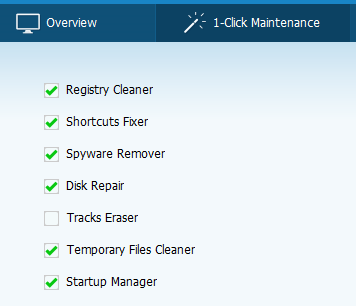
Using Glary in 1-click Maintenance, check Disk Repair so it checks the hard drive for problems. If it finds any it will attempt to fix on the next re-boot.
https://tinyurl.com/y3kl7mb5
Windows Event Viewer
The Windows Event Viewer shows a log of application and system messages, including errors, information messages, and warnings. It’s a useful tool for troubleshooting all kinds of different Windows problems. As a rule of thumb, assuming your PC is working properly, you can pretty much ignore the errors and warnings that appear in the Event Viewer. That said, it’s worth having a basic working knowledge of the tool, and knowing when it can be useful to you.
This is more for the geek amongst us. Windows logs everything and this is a way to peek at those logs.
https://tinyurl.com/ybjuegaj
How to perform a secure disk wipe with Windows 10's Format command
Windows 10's Format command comes with a special parameter that essentially wipes a hard disk. It was easy to do and worked like a charm. I figured other folks should know about this handy feature, so let's take a closer look.
We use special wiping programs to totally clear a hard drive but with Windows 10 we can now do that wipe in Windows.
https://tinyurl.com/yb84f4n6
Larry recorded today's session. If you would like to hear it:
https://tinyurl.com/y69fucwt
I was asked which backup program I prefer -- Macrium or EaseUS. I like them both but find EaseUS to use; fewer clicks to use it. Both work equally as good. I have written two articles about backing up and restoring using EaseUS.
Backup https://tinyurl.com/y5zvphmf
Restore https://tinyurl.com/y35lxqex
The file created is a compressed file that can only be opened with the program that created it. To do so requires you have the program that created it installed. Then you can double click the image file and view its contents.
Free HTML/WYSIWYG Online Editor
This tool was designed to make you extremely fast and efficient in HTML Editing. It's not for creating complete websites, therefore it does not create HTML head and body tags, but the body content only. The Web Editor is intended for all people who are in need of formatted HTML in their applications, websites or web content management systems (CMS). HTML5 Editor was designed to simplify the process of creating attractive web pages that render correctly in various browsers. It also helps to find and correct errors in your HTML markup so basically it's impossible to write wrong code with this tool.
I showed how you can right-click on a web page and view the source programming code written in HTML. Past it into this program and you can edit the page in WYSIWYG on the right and/or HTML code on the left. Use this tool not to borrow someone else's website but to create short blocks of code to give style to what is otherwise just text.
https://html5-editor.net/
AI Image Enlarger
AI Image Enlarger is a free software program for Windows and Mac devices, and an online service, that you may use to turn low definition photos and images into high definition ones. AI Image Enlarger promises that its upscaling technology produces high-quality results that preserve the quality of the source image.
We could not find the download page. The two we did look at did not work all that well. If you have some success please let us know.
https://tinyurl.com/yxlxyj9j
First Look at Malwarebytes 4
Malwarebytes, the maker of the security application Malwarebytes, released the first beta version of the upcoming major release Malwarebytes 4 to the public.
This was just information. It is in Beta now but be warned that something new and different looking is coming soon.
https://tinyurl.com/y3ttw3s9
Why Is My Machine Slowing Down?Perhaps when you purchased it, your computer ran like a champ and quickly did everything you needed. Now … well, not so much. Perhaps it takes forever to boot. Or starting applications is slower than molasses. Or maybe the machine just acts sluggish when you try to use it for just about anything. Regardless of the specifics, the underlying theme is simple: it’s slow.
Lots of good ideas, most of which we have discussed in the past. Here are some of my ideas.
All of a sudden going very slow, even stalling? Turn the PC off even if you have to hard stop it by holding down the power button until it shuts off. Restart and see if it is still slow. How full is your hard drive? How much memory do you have? 4 GB or more should be plenty. How old is your machine? If you have brought it from XP all the way to 10 it might be time to look for a new one; they are not very expensive. Even an old Vista or 7 might be slow.
Using Glary in 1-click Maintenance, check Disk Repair so it checks the hard drive for problems. If it finds any it will attempt to fix on the next re-boot.
https://tinyurl.com/y3kl7mb5
Windows Event Viewer
The Windows Event Viewer shows a log of application and system messages, including errors, information messages, and warnings. It’s a useful tool for troubleshooting all kinds of different Windows problems. As a rule of thumb, assuming your PC is working properly, you can pretty much ignore the errors and warnings that appear in the Event Viewer. That said, it’s worth having a basic working knowledge of the tool, and knowing when it can be useful to you.
This is more for the geek amongst us. Windows logs everything and this is a way to peek at those logs.
https://tinyurl.com/ybjuegaj
How to perform a secure disk wipe with Windows 10's Format command
Windows 10's Format command comes with a special parameter that essentially wipes a hard disk. It was easy to do and worked like a charm. I figured other folks should know about this handy feature, so let's take a closer look.
We use special wiping programs to totally clear a hard drive but with Windows 10 we can now do that wipe in Windows.
https://tinyurl.com/yb84f4n6
Larry recorded today's session. If you would like to hear it:
https://tinyurl.com/y69fucwt
Subscribe to:
Posts (Atom)