Thursday, January 16, 2014

Class Summary 1-16-2014

It was a good group today with 24 in attendance! Room is getting small. LOL. It did look a little like a command center with my 3 laptops, router, modem, printer, and projector all on that one table. All the notes can be downloaded from the link above for Class Notes. Those are the notes for the first hour's presentation on Basic Networking. Hope they help and remember you can always email me for assistance.

We covered a lot of other questions and I will try to recap them, at least what I can recall. If you think of something I need to add please let me know and I will add it.

First, note the new link in the upper right of this blog to request to be notified by email whenever something is posted on this blog. I post from time to time during the week.

Went back over stopping Facebook from sending all those pesky emails whenever anything happens. You open the Notifications area and say you do not want them. Easy as that. If you want to remove yourself from Facebook you can do that either by deactivating your account or permanently deleting it. go here to find out more https://www.facebook.com/help/www/224562897555674.

We looked at AOL mail and figured out how to change the default Font size for emails. Also talked about spam and how it is not a good idea to unsubscribe from unwanted emails from places you do not know. Just the fact that you answered it by clicking unsubscribe validates your email to them and you might just get a lot more emails. Better to report it as spam or even block their email address.

We also talked about sending emails to large groups of recipients. This is not a good idea using your email carrier. They count how many emails you send in a month and if you are over their limit, they can shut you down as a potential spammer! Instead use a email service such as the free one from MailChimp.com. I use that one to send the emails about the classes each week. If you forward that email to others and they scroll down to the bottom and click unsubscribe they unsubscribe you from the email list. If you want to forward it either (1) scroll down and remove the unsubscribe link or better yet (2) use the forward this email link on the email.

I mentioned again that if you have Windows 8, go to the App store and install 8.1. It is a free upgrade for now. But it does take a few hours to download and install. So be patient. Not sure if you have it yet? Press Windows+Pause to open the Systems window.
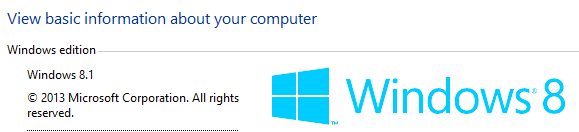


This is what mine looks likes.

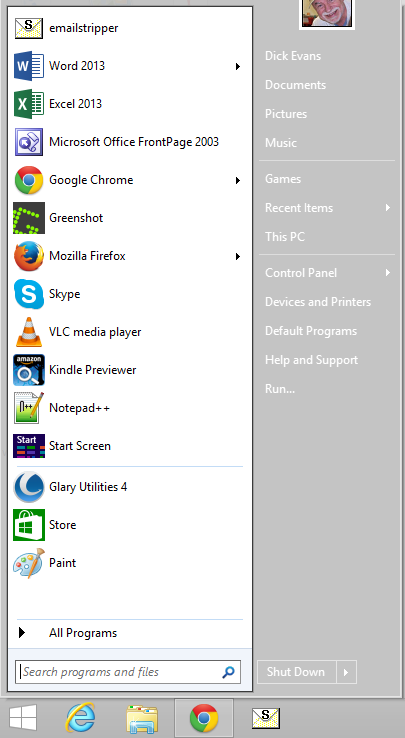
And you should go to classicshell.net and download and install it on your Windows 8/8.1 computer. It brings back the Start Menu on the desktop and when your system boots it boots to the desktop instead of the Start Screen. You can return to the Start Screen at any time by pressing Shift+Windows. And when you are at the Start Screen you can get back to the desktop by tapping the Windows key.

This is what it looks like on my 8.1 desktop:


Tuesday, January 14, 2014

Home Networks

This week, 1-16-2014, we will be looking at setting up a home network with a couple of computers and a printer so the printer can be shared between both. This will be a live demo.

Portable Hard Drives

Here are a couple of good prices for backup drives with free shipping and no sales tax in FL:


1tb $69.99 USB 3.0
http://www.newegg.com/Product/Product.aspx?Item=N82E16822145597

500gb $59.99 USB 3.0
http://www.newegg.com/Product/Product.aspx?Item=N82E16822145582

Thursday, January 9, 2014

Open Forum Notes 1-9-2014

Hard to remember all we talked about today. I know we spent a good deal of time answering questions about Facebook.

It started with a question about who can see what when you post something. And that has to do with how you set up your privacy and the fact that you can change that decisions with each post you make, for that post.

Public means anyone who wanders onto your Facebook page can see the post.
Friend means that only those you have friended are able to see them. You can even specify who can or can't see the post bu individual or groups of persons.

Then we showed how to create an album of pictures and how to upload images from your computer into it. Looked at the facial recognition piece of Facebook and talked abut uploading large images bu checking the box or leaving it unchecked and letting Facebook resize them.

Then we talked about tagging photos you have uploaded so the picture matches the name of one of your friends on Facebook. And about tagging pictures that do not include a friends picture just so it appears on their page.

Also looked at Notifications and how I have turned all of my Email notifications off so my email is not overwhelmed with an email every time anyone interacts with my Facebook.

I was asked about moving a partition from an external drive which led to a description of what a partition is and why we might use them. I suggested using the partition software free from the makers of Easeus Todo Backup. See: http://www.partition-tool.com/personal.htm

Talked about backing up in the cloud and some of the sites available to do that as well as using backup software (Acronis or Easeus ToDo Free) to create a System image on an external drive. I use Mozy an iDrive to auto-backup all my changed files everyday. I do my image backup once a month. If my system crashed I restore it to the last image and then go to my cloud backup and restore the latest version of the data.

I do not use my cloud backup to store all my photos. I upload them to Flickr, Picasa Web, Facebook, Shapfish, or another cloud storage area. Unlike Mozy or iDrive, these have to uploaded by hand. Other places available for cloud storage for free are Dropbox, Google Drive, Windows Live, and others.

If you want to try Mozy: use code GFBU22 http://www.mozy.com/free
iDrive: https://www.idrive.com/?uid=U6K1S9L3C3

If you can remember something else we touched on let me know and I will add to this post.

Tuesday, January 7, 2014

Make an ICON

One of the questions at tonight's open forum was about how to create your own icon. And of course why would you want to do that? We Googled the question and came up with a few possible programs. When I got home I found a website that will create it for you. You simply upload the picture you want to use and it generates a downloadable .ico file. Here is the link:

http://www.pic2icon.com/windows7_vista_icon_generator.php

To use that icon, locate a shortcut you would like to use it on. Right-click and choose Properties. Click Change Icon. Then Browse for the file you just downloaded an click OK and then Apply.

Monday, January 6, 2014

Updating Glary Utilities

Confused by all the screens? Here is a step by step to updating and running Glary:

http://rwevans.com/cccgc/UpdatingGlaryUtilities.pdf