Thursday, November 12, 2015

Class Summary 11-12-2015

We began talking about OneDrive again. Last week we raved about the fact that you were given 15gb free in the cloud and that whatever you moved to those folders on your computer where automatically synchronized to your OneDrive in the cloud. Well the later is still true. However the former is not. Microsoft is rolling back the amount of free storage to 5gb. We have one year to get our needs below that 5gb limit or we have to pay for 50gb with a monthly charge or we lose what is over the 5gb ceiling. Here are a couple of articles that explain the details.

https://blog.onedrive.com/onedrive_changes_FAQ/
One Driver changing the rules

http://www.cnet.com/how-to/onedrive-dropbox-google-drive-and-box-which-cloud-storage-service-is-right-for-you/
Good article on various cloud options

And your OneDrive can be found online at onedrive.live.com

Then we looked at Ninite and installed a program to view all the files in OneDrive to see their sizes. I need to get my OneDrive down under 5gb and it is a little over right now. This program call WinDirStat graphically shows each folder and file in the selected drive or folder and its size. Here is a link to company that created it.

http://windirstat.info/
Cleaning out OneDrive

This next one we came upon doing a search. I did not get to it in class, but you might want to check it out. It is a free online image editing site.

www.picmonkey.com
Edit pictures online for free



And this one came as a result of someone finding my Useful Links page on my website. They emailed me suggesting I check it out. It is a very useful site to easily create graphic images by combining images and text. Here is an example of one I created and posted to Facebook this morning.

https://www.canva.com
Build your own graphics
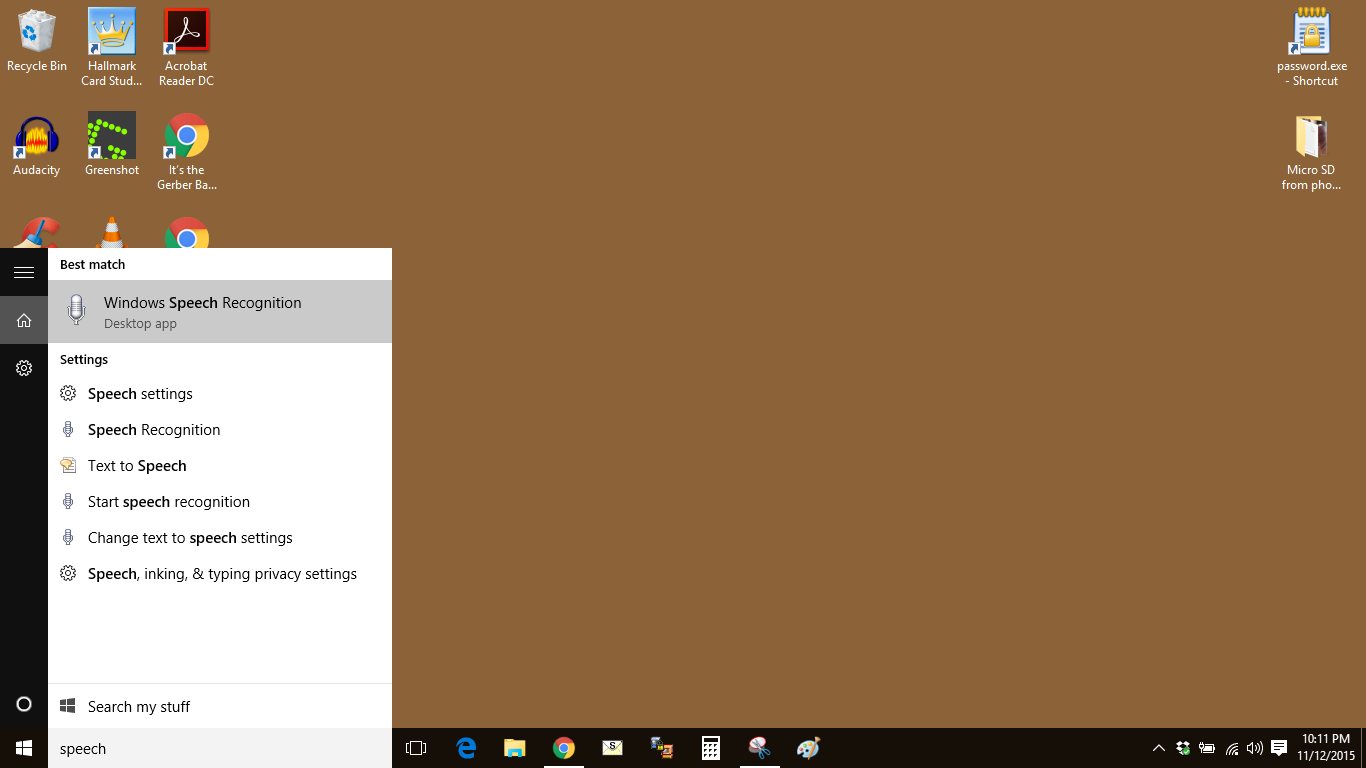


We have talked before about using the speech to text feature in Windows. It is easy to turn on. In the Search Windows box next to the Start button, type speech recognition. Click the results to open it.
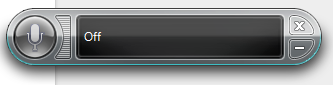


When you have successfully walked through an easy setup path, this will appear on your screen. You may drag it to another position on your screen at any time. Click the microphone to turn it on and again to turn it off.

When you are in a Microsoft program like Word or even Notepad, what you say is typed for you. Depending on your voice the words may or may not come out correctly. However, you can go through some exercises to teach the program to recognize your speech pattern
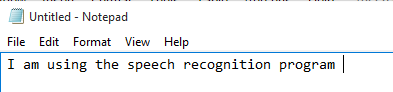


Get it to know your voice and you can stay away from the keyboard.

You can also activate the text to speech feature in Word and have it read your document to you.

I know we covered a lot more today, but this is all I can remember...

Thursday, November 5, 2015

Class Summary 11-5-2015

Very active class today. We covered so many diverse topics it was hard to take notes. But here is a bit of what we covered.

I explained the difference between a laptop/notebook and a desktop and a netbook. It all has to do with size and portability. Popular today is the notebook computer. And they are so much more powerful than the old desktops of Windows Vista era. In addition you have tablets, chromebooks, and even cell phones. Most all of the popular reason for having a computer can be done on a cell phone today--especially the larger ones. Not only can you use it as a phone, it can keep your calendar, check your email, view Facebook, deposit checks to your bank account, and search the Web.
 
Price right now is $109~see http://tinyurl.com/nd7nvqu

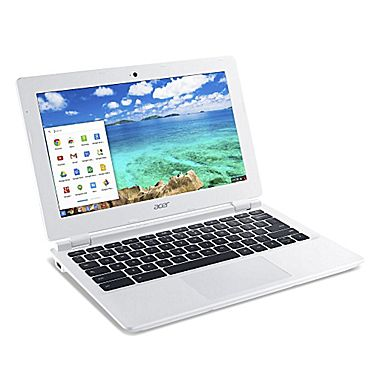
Speaking of Chromebook, This is the one I am using right now to write this summary. When finished I will use it to send out the emails with Mailchimp and update the class blog site. No need to use any of my other computers. And I am not even using Windows anything!

10 things to know
https://www.youtube.com/embed/QoT0-2vu9m4

The above video shows you a number of tricks for using Windows and your browser. This was a new one for me: When on a Web page, press the spacebar to scroll down the page and Shift+Spacebar to scroll up. Watch the video and pick up a few more tricks.

Spent some time on Windows Live talking about the fact that you have 15gb of free cloud storage with your Windows account. And you can use the online Office programs at no charge. Your OneDrive on Windows 7-10 synchronizes what is on your OneDrive folder on your computer to your account on Live. Having it in the cloud is a backup of what is on your computer. It is then available to you on your cell phone, tablet, or other computers.

There are two versions of Picasa. One downloads to your PC and helps organize and edit your images. The other is online and helps organize the photo you have in your Google Photos. Google Photos allows you unlimited free storage for your photos. And there is an app for your cell phone (iPhone or Android) that will take the pictures you take an auto upload them to your Google photos cloud.

Free Clip Art
http://classroomclipart.com/

We talked last week about the fact that the new versions of Office do not have an Insert > Clip Art feature. The above is one of many sites you can browse to find clipart. Another good source is Google.com. Just click on images in the upper right and search for the kind of image you are looking for. Caution: be sure the image is free and not copyrighted.

Thursday, October 29, 2015

Class Summary 10-29-2015

Thanks, Paul for the solution to my question about how you find the programs in the Windows 10 Start Menu:

When you were trying to get a look at Programs in the Win10 start menu today, did you have an option that says “all Apps”? When you click on that button, all the programs, apps…… show up in an alphabetical listing.

I still like the way ClassicShell renders them…

We began with some general Facebook questions about security and how to make your posts available to friend, public, or self. Friends are those you have accepted a friend request from.


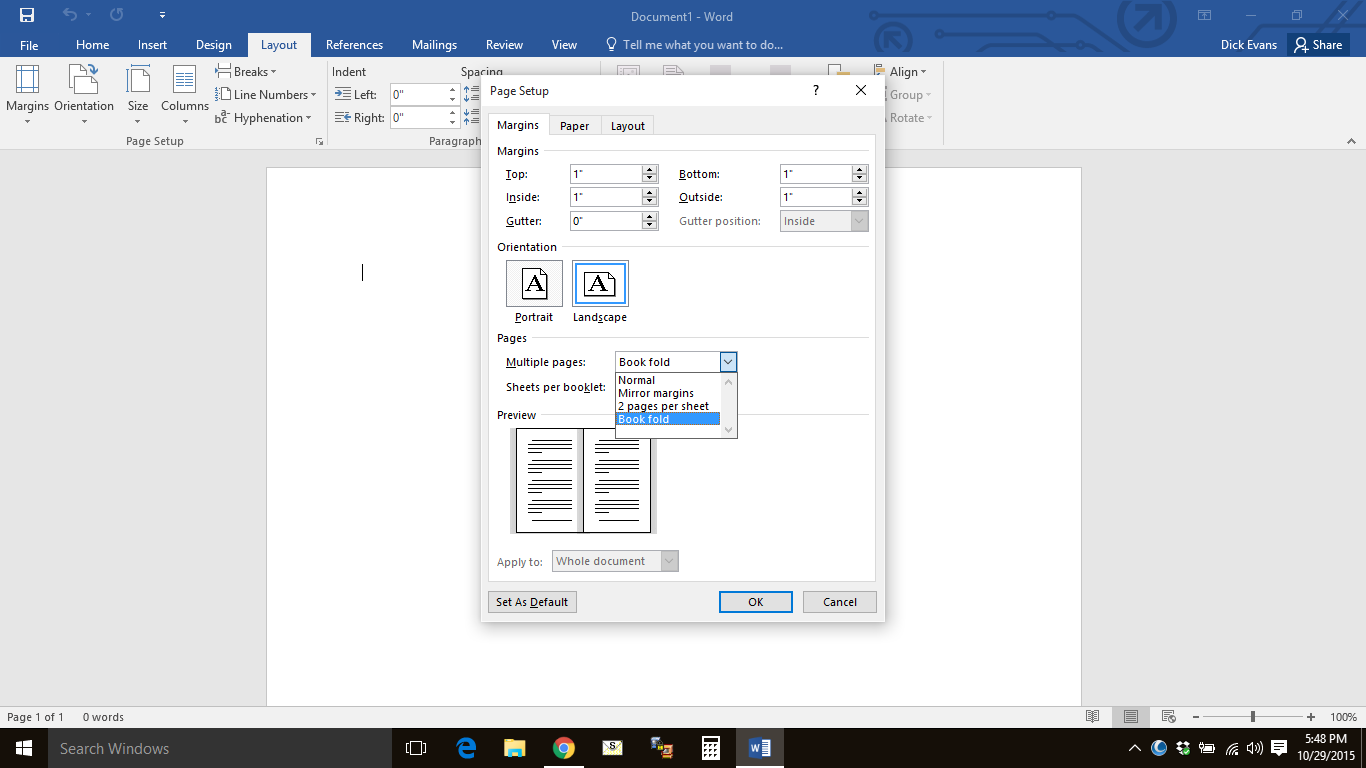
We took a look at how to print a document in booklet form in Word. On the Layout ribbon, locate the diagonal arrow in the lower right of the Page Setup group and click it. This opens the Page Setup dialog box. Under Pages pull down the list for Multiple pages and select Book Fold, then click OK. Your document will be reformatted to fit a half size piece of paper and when printed it will create a booklet.

http://tinyurl.com/cccgc-clipart
We looked at how to access clipart in Office 2013 and 2016 as clip art does not install with the product as is did in previous version of Office. Also used the long link to that solution to demonstrate using tinyurl.com to shorten it to give to someone else.

http://www.laptopmag.com/articles/windows-10-keyboard-shortcuts
Good article on using windows key shortcuts in Windows 10, but many work with previous versions of Windows as well.

http://www.laptopmag.com/articles/windows-10-settings-to-change
This article suggests a few changes to the settings in Windows 10 right away. Most of them I have used on previous versions of Windows as well.

http://www.laptopmag.com/articles/capture-screenshots-windows-10
A new way to take screenshots in Windows 10 is to hold down the Windows key and then tap Prtscr. This takes a snapshot of the screen and places it as an image file (png format) in the screenshot folder in documents. Just pressing Prtscr places the image in the clipboard only. We have also looked at other screen print options such as the Snipping Tools, Greenshot, and MWSnap.

http://www.laptopmag.com/articles/make-windows-10-like-windows-7
A good article on installing ClassicShell which works great on Window 10 and 8 and even 7.

http://www.laptopmag.com/articles/create-keyboard-shortcuts-windows-10
Article shows you how to create your own keyboard shortcuts to open your favorite programs from the keyboard

Lastly we looked at how to show the bookmark (favorites) bar at the top of the browser under the address bar. In all four main browsers (Edge, IE, Firefox, Chrome), this is done under settings and usually has an option like “Show bookmark bar”. In Chome Ctrl+Shift+B will toggle it on and off.

Thursday, October 22, 2015

Class Summary 10-22-2015

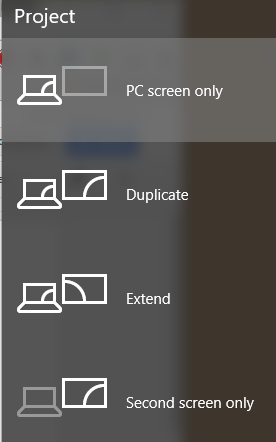
A busy afternoon with fifteen in attendance. We began demonstrating how you can have two monitors connected to your laptop and display different windows in each. When you connect the second monitor with a VGA connector or even a TV set with an HDMI cable, you press Win+P to open the project window.


You can have only one screen in operation, or both displaying the same screen like I do in class to show you a larger view on the large TV screen of what I am doing on my laptop, or you can have one screen on the laptop active and drag windows from it to the second screen allowing you to work on two applications at once without having to switch back and forth. (BTW that is what is called a run on sentence!)


Then we had a discussion about OneDrive. It comes with Windows 7-10. When you open the File Manager you will see it in the left column. Click and it will open showing you all the folders it contains. It is like looking into all the files and folders in your Document folder. You can save files under OneDrive or in your documents, or other, folders. When you save them in OneDrive they are automatically sent to your Microsoft Cloud which is free for 15gb of data. If you do not have a Microsoft account, then you will not see the OneDrive folder in File Explorer. If you are not connected to the Internet the files are still in your OneDrive folder on your PC. When you connect to the Internet, the files are synchronized so both the Cloud and your PC have the same files. When you sign into your Live.com account, your Microsoft account, from another PC you have access to all those files. Think of it like a backup in the cloud of all your work. When you drag a file from your PC into OneDrive, the file is moved to the new location, but is still on your PC. It is just in your OneDrive folder instead of your Document folder.

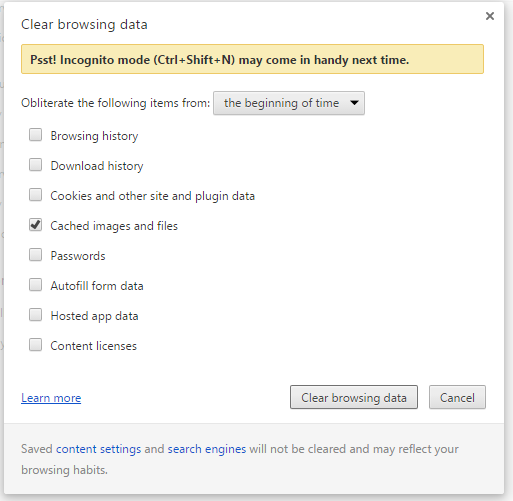
When your browser is running slow it may be because you have too many items in its cache. That is a temporary place that holds data from previous browsing that will speed up access to previously viewed pages. This is good until you have so much in your browser cache that accessing it is slower as the browser has to search through all its entries to open the page you are looking to open.


To clear the cache, you can bring up the Tools window in your browser. In Chrome you can press Ctrl+Shift+Del to open the dialog box. I do not suggest clearing the cookies and plugin data, just click Clear browsing data with the checkmark on Cached images and files. Your browsing with be a little quicker.

More on browsers: understanding tabs, right-click on open tab, right-click on new tab, looking into history, using the address bar -- auto fill, ctrl+L, selecting and copying, printing, etc. And we discussed using the center button your your mouse to open a link in a new tab. The center button is the scroll wheel. Not using a mouse? Right click the link and one of the options is to open the link in a new tab.

http://www.pdfonline.com/pdf-to-word-converter/
We took a look at using the above site to convert a PDF to a Word file to be able to make changes in that file. The actual file created is not a DOC but a RTF (Rich Text FOrmat) that can be opened in any word processing program. Microsoft Word 2013 and 2016 will open a PDF and allow you to make changes to it and save it as either a DOC or a PDF file. Older versions will not opne a PDF directly, so a conversion application like this website is necessary. LibreOffice will open a PDF, but it creates and series of images opening it's Image program, not a word processing file.

https://www.pdfbuddy.com/
Use this cloud application to edit a PDF online. Not useful for making changes in a PDF. This is more for completing a PDF form--like inserting your name and address and maybe adding an image of your signature to email the completed form to someone.

Instructions on how to use this application can be found at this site:
https://www.pdfbuddy.com/how-to/edit-pdf

I know we touched on much more, but this is all I can remember tonight.

Thursday, October 15, 2015

Class Summary 10-15-2015

We talked about how to get back to Windows 8 or 7 if you do not like 10. we Googled the question and found a YouTube video that walked us through it--step-by-step. It is pretty easy to do it, but perhaps you might want some instruction on 10 before taking that step. Here is the video we found:
https://youtu.be/E-V0XSjz3w8

Using MS Word, I demonstrated how to generate some random text using a website called http://www.lipsum.com/. You do not need Word. It just generates as much text as you need so you can copy and paste it into whatever program you to use it for.

While we were in Word a question was asked about using and rotating text boxes. Most Word users are not aware of text boxes as they just open word and start typing. Text boxes allow you to create a “box” of text and manipulate it like different fonts and colors from the document you are placing them into. You can change the backgrounds and even add pictures. And you can rotate the box so it is upside down or at any angle you want. This is great for creating your own greeting cards, quarter fold.

I was asked about the messages that pop up to update Java and Adobe. Both are necessary and neither comes with Windows, any version. So it is okay to allow those update. Be sure to read the screens to make sure you do not allow any other programs to install--look for checkboxes and radio buttons. Ninite.com is a good way to update programs without haveing to beconcerned with any other installs.

Some were not aware of the available addon to bring back the start menu looking like XP, Vista, or 7. You might give it a try before throwing out 10. Go to classicshell.net and download it. I think you will like it.

While in ninite, I was asked what VLC was all about. It is a media player that allows you to play DVD’s on your PC without having to purchase the Microsoft Media Player that was left out of 8 and 10. Get it from Ninite. (link above)

Last week we touched on Photo Story 3. Today we created a movie from still images and looked at how to add word, voice over, music and change the way the animation works. Download your copy from:
http://download.cnet.com/Photo-Story-3-for-Windows/3000-12511_4-10339154.html

Talked a little about email. Many use the email provided by the internet server they are using, like comcast or embarq in this area. I suggest using an email that is in the cloud like Yahoo, gMail, live, or a host of others. Have your other email forward to your cloud email. Then wherever you are you can access your email and if you change providers you do not have to change your email address.

Thursday, October 8, 2015

Class Summary 10-8-2015

After spending a couple of hours with someone this week on how to get pictures from his camera over to his computer and then to an email, I decided I should talk again about pictures to the class. Here are the points, as I remember them, we touched on today with members both in the class and joining us online via Google Hangouts.

If you search the class notes you will find many notes on most of what we discussed today, so I will briefly write on each topic.

Pictures to the PC from our cameras and cell phones
Cameras and cell phones store the pictures you take in memory. Some have removable storage using SD or MicroSD cards. Even if they do not, the device can be plugged into a USB port on your PC. Windows see the device like it does a USB flash drive (a.k.a. thumb drive) and will display its contents in File Explorer. The pictures can be found in the folder named DCIM. I looked it up and it stands for Digital Camera IMage folder. Just like moving files to and from a USB flash drive, you can move files to and from your picture taking device.

Pictures from FacebookWhen you are viewing a picture on your newsfeed or in one of your friends (or your) page, click the picture to open it in its own window. Then right click and save image as to open a save as dialog box to give it a name a give it a location to store it on your PC. Remember, the pictures you are taking are not yours to use as you wish. They were taken by someone else, so be careful how you use them and perhaps ask permission to do so from the one whose page it is on.

Getting a picture off the Web using the Windows Snipping ToolIf you see a picture on your screen, you can save it as an image on your PC even if a save as image option is not available. Print Screen (Prnt Scrn on your keyboard) will take a picture of your screen and place it in the Windows clipboard. Paste it wherever you want and save it as an image on your PC. Since it is the entire screen you will want to edit that picture to crop it to get the actual image you want to save.

A better approach is to use the Snipping Tool that comes with Windows. This lets you drag a box around the piece of the screen you want to grab and save it as an image on your PC among other options. A non-Windows approach with many more options are available. One that I use is called Greenshot.

Resizing pictures
If you are using a cell phone for pictures, there is an edit feature built in that will enable you to resize and fix your picture before you even download it to your PC. A simple program I use to resize pictures in called Prish Resizer.

When we take digital pictures the resulting file size for each picture is 1mb or more, sometimes even as large as 4mb--depends on the megapixels of the camera and the complexity of the picture taken. The example I showed in class was a 1.4 mb or 1400 kb image that we resized to an 800x600 image using PrishResaizer to 80kb. Uploads to Facebook and attachments to emails go a lot quicker with a smaller size file.

Emailing pictures from our PC
Simply open your email (Outlook, Gmail, Yahoo, Hotmail, Comcast, Embarqmail,etc) and compose a new email. Look for the button or picture of a paperclip to attache a file. Attaching means to send it along with your email giving the recipient the option to download it. Usually a thumbnail picture of the image displays at the bottom of the email. If you have the option (not available on all email types) to insert an inline picture that means the picture will display in the email itself so the recipient will not need to download it to view.

Editing pictures using Windows Live Photo Gallery
Photo Gallery allows you to edit your pictures. You can crop then, fix crooked images, brighten images, and much more. Thanks, Donna for showing us this great program.

Making a movie of your pictures using Photo Story 3
This is another free program that allows you to make an animated movie with sound of your still photos. Easy to use and works great.

I am sure we talked about a lot more, but this is where my recall is tonight..

Thursday, October 1, 2015

Class Summary 10-1-2015

We had a large range of questions today from printer problems to finding music on the internet. Some are finding that their printers are not being found in Windows 10. This usually has to do with the driver not being compatible with the new OS. Locate the website for your printer manufacture and look for the page about drivers for your device. Know what its model number is. Then download the latest driver and install it. This will fix your printer issues. If a driver is not available for your printer because it is just too old, you may have to get a new printer or revert back to your last OS that worked with the printer.

We looked at using Join.me as a way to help someone else remotely with their computer issues. May be a way to walk them through using a program or even helping them run the maintenance programs. And remember DO NOT ALLOW ANYONE ACCESS TO YOUR PC unless you know them. You do not want someone from some foreign country to access all your files on your PC even if they say the are from a legitimate company in America.

Talked about backing up and I discussed what I do. Much of this is expanded on in past classes. I run an image backup program on my PC at least once a month. I plug in an external hard drive to one of my USB ports and it makes a bit for bit image of everything I have on my hard disk drive. I then put that somewhere safe. If my computer crashes (and I hope it never does) I have but to replace or format the hard drive and use the image backup I made to restore back to the date of that last backup. No need to install any software, download any Windows updates, or remember any codes for programs I purchased. Everything comes back just as it was the day I did the image.

That's great except… any files that were added or changed since the last image are gone. What I do is to use a cloud backup service called Mozy.com. It is free for the first 2.3 gb of data and allows me to select what files/folders I want backed up. Here is the link to download that software:

Backup in the Cloud; use code GFBU22. http://www.mozy.com/free. Free is 2 gb of data. Use the code and you and I receive the other .3 gb. Thanks!

About three times a day when your PC is on and connected to the Internet, Mozy backs up any new file or changed file to the cloud. It is as simple as that. When the crash occurs, you restore the image and then go to your Mozy account and restore all the changed or added files. This does not restore any programs you may have added or updated since the image, so you may have to download and install those. The more often you do an image the easier it will be to remember what you installed since the image.

Looked a WinDirStat that can be downloaded from ninite.com as a good program to looked at the size of thte folders and files on your disk. Also used the duplicate file finder program in Glary Utilities to find duplicate pictures on disk so we can remove them.

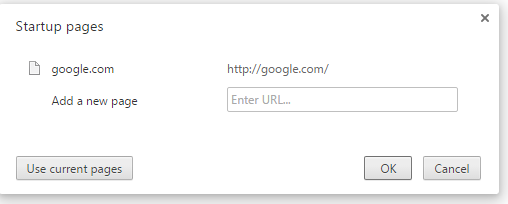
Talked about how to change the default starting page in a browser to be what we want to see and not what our Internet service wants us to view. Click the settings button in the upper right and look for Settings. In IE click Internet Options and you can tell it what website or sites you want to open when the browser starts. In Chrome and Firefox you will find a place to change the website address for when the browser opens.
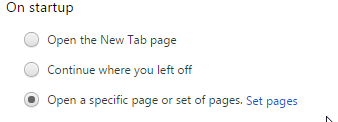
Chrome:


There were many other things discussed, but this is what I remember. See you next week for a whole new set of questions. And remember, you can email me questions any time at richard@rwevans.com