Thursday, January 23, 2014

Class Summary 1-23-2014

Check the link above for the class notes on today's talk about creating a slideshow from and album of pictures.

In addition we covered a number of other topics which I will attempt to summarize here.

The first was a question about how to add titles to a word processing document that had 3 columns. the short answer was that you cannot. But a better approach is to insert a table that has 2 rows and 3 columns. The first row would be used for the titles for each of the columns and the second row to contain the data you want to separate into columns.


Then we discussed how to download and update many useful programs using a site named Ninite.com. Then software you install with this helpful site download and installs with not intervention on your part at all AND you don't get extra programs or toolbars installed because you missed a questions for two.

Also talked about a couple of nice cloud backup software from Mozy and iDrive. Here are the links. They are both free for a limited amount of space, but not all that expensive for unlimited. I have used Mozy to restore files when one of my computers crashed last year.

Backup in the Cloud; use code GFBU22  http://www.mozy.com/free
Another cloud backup http://www.idrive.com/?uid=U6K1S9L3C3

Either one will give you free space and by using the link and code give me some extra as well.

And we discussed the free disk space in the cloud available using DropBox. Whatever you place in your dropbox you can access from anywhere by signing into your account. You can share files and even folders with others by sending them a link address created in your dropbox. Great way to keep your pictures in the cloud and to send others a link to them instead of trying to upload them through email. If you install dropbox on your smartphone, then ever time you take a picture it will be automatically uploaded to your dropbox. And you can install dropbox on  your computer and it will keep a copy of all your dropbox files on your computer and automatically sync it to your cloud storage.

Drop Box: http://tinyurl.com/b87mha8

Please use the above link to create your free dropbox and it will give me some extra free space as well.

Then we talked about resizing pictures using a free program called Prish Resizer. Simply right click on a picture or a group of pictures, choose the size you want, and a resize folder is created for you with the pictures resized to the size you requested. A great way to take those 2-5 mb images and turn them into much smaller images sutible for sending by email.

PrishResizer: http://download.cnet.com/Prish-Image-Resizer/3000-2192_4-75180364.html


We also talked about http://portableapps.com/ as a way to bring your applciations (the ones that offer a portable version of their software) with you on a USB flash drive.
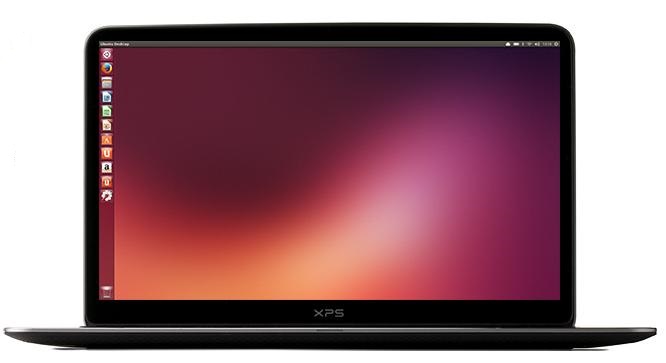


Attempted at the end of class to demo Ubuntu, a free operating system that is NOT Microsoft Windows. But it was taking too long to install. Will bring it pre installed for another time.

Friday, January 17, 2014

A Worthwhile Signature

Here are some examples from two of your classmates. They put these in the signature of their emails to remind people about the proper netiquette of removing others email addresses when forwarding emails.

Example 1:
If you forward this, please remove all email addresses before you send it on, and use the BCC area when forwarding to friends. This prevents emails circulating on the web with hundreds of contact addresses attached. "Be kind to our email friends."

Example 2:
REMEMBER:  To help curb spam, if you intend to forward this email please delete my address on the FWD Email. If you already do this, thank you!

Here is what I decided to use on mine:
If you forward this, please remove all email addresses before you send it on, and use the BCC area when forwarding to friends. This prevents emails circulating on the web with hundreds of contact addresses attached; easy targets for spammers to gather addresses. Thanks!


Emoticons in Facebook

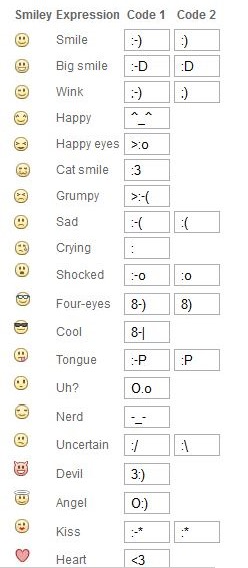
One of our class members passed this along. When you are typing in Facebook you can use these shortcuts to insert emoticons in your messages:

Thursday, January 16, 2014

Class Summary 1-16-2014

It was a good group today with 24 in attendance! Room is getting small. LOL. It did look a little like a command center with my 3 laptops, router, modem, printer, and projector all on that one table. All the notes can be downloaded from the link above for Class Notes. Those are the notes for the first hour's presentation on Basic Networking. Hope they help and remember you can always email me for assistance.

We covered a lot of other questions and I will try to recap them, at least what I can recall. If you think of something I need to add please let me know and I will add it.

First, note the new link in the upper right of this blog to request to be notified by email whenever something is posted on this blog. I post from time to time during the week.

Went back over stopping Facebook from sending all those pesky emails whenever anything happens. You open the Notifications area and say you do not want them. Easy as that. If you want to remove yourself from Facebook you can do that either by deactivating your account or permanently deleting it. go here to find out more https://www.facebook.com/help/www/224562897555674.

We looked at AOL mail and figured out how to change the default Font size for emails. Also talked about spam and how it is not a good idea to unsubscribe from unwanted emails from places you do not know. Just the fact that you answered it by clicking unsubscribe validates your email to them and you might just get a lot more emails. Better to report it as spam or even block their email address.

We also talked about sending emails to large groups of recipients. This is not a good idea using your email carrier. They count how many emails you send in a month and if you are over their limit, they can shut you down as a potential spammer! Instead use a email service such as the free one from MailChimp.com. I use that one to send the emails about the classes each week. If you forward that email to others and they scroll down to the bottom and click unsubscribe they unsubscribe you from the email list. If you want to forward it either (1) scroll down and remove the unsubscribe link or better yet (2) use the forward this email link on the email.

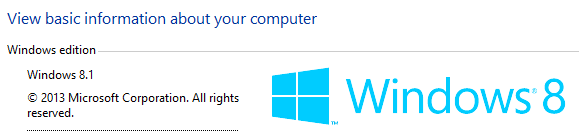
I mentioned again that if you have Windows 8, go to the App store and install 8.1. It is a free upgrade for now. But it does take a few hours to download and install. So be patient. Not sure if you have it yet? Press Windows+Pause to open the Systems window.


This is what mine looks likes.

And you should go to classicshell.net and download and install it on your Windows 8/8.1 computer. It brings back the Start Menu on the desktop and when your system boots it boots to the desktop instead of the Start Screen. You can return to the Start Screen at any time by pressing Shift+Windows. And when you are at the Start Screen you can get back to the desktop by tapping the Windows key.

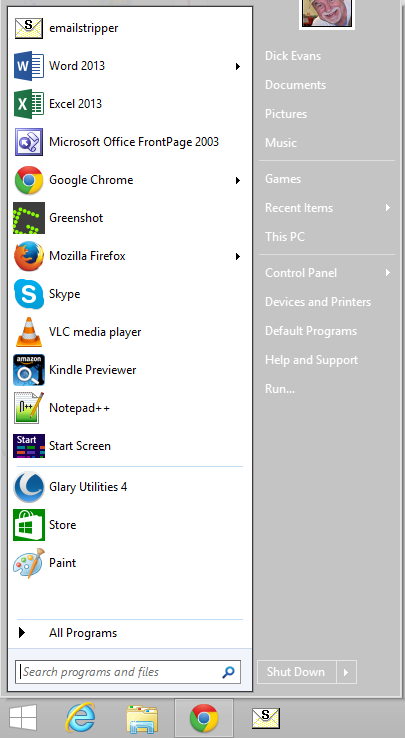
This is what it looks like on my 8.1 desktop:


Tuesday, January 14, 2014

Home Networks

This week, 1-16-2014, we will be looking at setting up a home network with a couple of computers and a printer so the printer can be shared between both. This will be a live demo.

Portable Hard Drives

Here are a couple of good prices for backup drives with free shipping and no sales tax in FL:


1tb $69.99 USB 3.0
http://www.newegg.com/Product/Product.aspx?Item=N82E16822145597

500gb $59.99 USB 3.0
http://www.newegg.com/Product/Product.aspx?Item=N82E16822145582

Thursday, January 9, 2014

Open Forum Notes 1-9-2014

Hard to remember all we talked about today. I know we spent a good deal of time answering questions about Facebook.

It started with a question about who can see what when you post something. And that has to do with how you set up your privacy and the fact that you can change that decisions with each post you make, for that post.

Public means anyone who wanders onto your Facebook page can see the post.
Friend means that only those you have friended are able to see them. You can even specify who can or can't see the post bu individual or groups of persons.

Then we showed how to create an album of pictures and how to upload images from your computer into it. Looked at the facial recognition piece of Facebook and talked abut uploading large images bu checking the box or leaving it unchecked and letting Facebook resize them.

Then we talked about tagging photos you have uploaded so the picture matches the name of one of your friends on Facebook. And about tagging pictures that do not include a friends picture just so it appears on their page.

Also looked at Notifications and how I have turned all of my Email notifications off so my email is not overwhelmed with an email every time anyone interacts with my Facebook.

I was asked about moving a partition from an external drive which led to a description of what a partition is and why we might use them. I suggested using the partition software free from the makers of Easeus Todo Backup. See: http://www.partition-tool.com/personal.htm

Talked about backing up in the cloud and some of the sites available to do that as well as using backup software (Acronis or Easeus ToDo Free) to create a System image on an external drive. I use Mozy an iDrive to auto-backup all my changed files everyday. I do my image backup once a month. If my system crashed I restore it to the last image and then go to my cloud backup and restore the latest version of the data.

I do not use my cloud backup to store all my photos. I upload them to Flickr, Picasa Web, Facebook, Shapfish, or another cloud storage area. Unlike Mozy or iDrive, these have to uploaded by hand. Other places available for cloud storage for free are Dropbox, Google Drive, Windows Live, and others.

If you want to try Mozy: use code GFBU22 http://www.mozy.com/free
iDrive: https://www.idrive.com/?uid=U6K1S9L3C3

If you can remember something else we touched on let me know and I will add to this post.