Friday, January 13, 2017

Computer Club Class Summary 1-12-2017

All about photos.

We spent most of the morning talking about pictures. When you plug in your cell phone or your camera’s SD card, or your digital camera itself to your Windows PC, you can select to have it automatically upload the pictures it finds. By default, they should end up in the Pictures folders in a sub-folder called Camera Roll.

If you are using the drag and drop method to get you pictures off your camera, you will find them located in folder named DCIM. They will have a sequentially numbered name and an extension (the characters after the rightmost dot) of JPG or JPEG. If the file is a movie it could be a MOV extension or a MP4. Other picture extensions are BMP. PNG, and GIF. Cameras do not use these last three.

So there they are all in one folder with all the other pictures you have taken and uploaded before. And they all have strange names that see to have no meaning at all. Best to create a folder under Pictures or even under Camera Roll naming it something that relates to what was just uploaded, like Christmas 2016. Then select the picture that pertain to that event and copy them into the new folder (Christmas 2016).

When copying files or groups of files, left drag will move them if the files are going from and to the same device. If they are going to a different device like in the case of your SD card to your hard drive, a left drag will copy them, leaving the original in place. If you right-drag instead of left, when you release the mouse button a selection box will appear that allows you to choose Copy or Move.

Now they are all together and much easier to find later. But they still have the odd names. You could look at each picture and rename them to fit the scene. Or you could select all of them using the shift-click method (click the top one, then scroll down and hold the shift key down as you click on the last one) or use Ctrl+A to select all the pictures. Then Right-click on the first one and choose Rename. Create a meaningful name (like Christmas Pictures), When you press Enter, all the selected pictures are renamed the same with a suffix of (1), (2), (3), etc.

As a side note, Ctrl+Z will undo the last action and Ctrl+Y will redo it. You can also right-click on the desktop and undo it.

OK, the pictures are organized and renamed. Now what? Well you might want to show them to others. In the past I would have said to plug in a blank CD or DVD and burn them onto it. Then mail it away to whomever. That was before the “cloud”. Upload your picture to Google Photos, Dropbox, OneDrive, etc. Then share the pictures or folder of pictures with others. You will get a link address you can email or message others so they can see and download your pictures, but only the ones you have shared. They will NOT have access to your cloud drive; only the folders or files you chose to share with them.

We also looked the Photos App in Windows 10 and saw how to edit our pictures. And then how to open the pictures in the Paint program to add descriptions right on the image itself. I do suggest saving the result as a new file so you keep the original intact.

Then we looked at a free program from Microsoft called Photo Story 3. It is a simple, self explanatory program to build a slideshow of your pictures. You can even add narration, captions, and music.
http://tinyurl.com/z35xnvl

Oh, one last item--printing. With the low cost of letting someone else (Walgreens, CVS, WalMart, Sam’s Club, etc) it is less expensive and much higher quality to send the ones you want printed to them using their online app or going right to the store with the images on a flash drive or SD card. The glossy pictures are so much better than what we can print at home and usually you can pick them up in an hour or less. You can even print the for you family far away and let them pick them up at their local WalMart or other store.

Thern we looked at using the Hallmark Greeting Card program (about $30 to purchase) to print greeting cards. Each card can be personalized in word and with pictures. Save some money on cards and the time to go find them by generating your own right at home.
http://tinyurl.com/gwshmkx

Was asked about downloading videos from YouTube. There are programs you can download to do it, but you can also do it online. Open the YouTube video you want to grab.
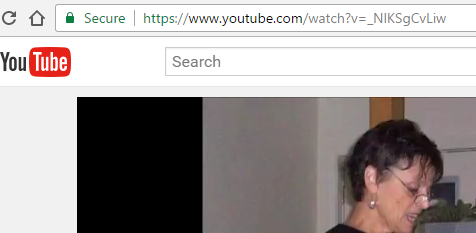


Place your mouse in the address bar after the www. And type dl



Then press the Enter key. (Will not open if and adblocker is present)
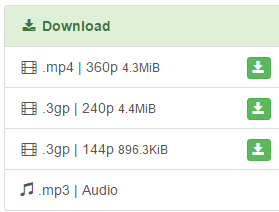


Now you choose what you want to capture. I suggest the mp4 format as most video programs accept that format. The file will end up in your Download folder.

Next week we will look at various programs to use for word processing and talk about inserting pictures.

Thursday, December 15, 2016

Class Summary 12-15-2016

New life for old computer. Simply insert your Xtra-PC into a USB port, restart your computer, hit the boot ... Why invest in a new computer when you can transform your old computer into a like-new one for under $25. ... Affordable; Tiny size USB stick; 8GB of storage.
http://tinyurl.com/zjn4clq

Build your own Linux USB stick. This web page will show you how and you can skip the $25
http://tinyurl.com/zmldglo

7 Hidden iPhone Camera Features That Every Photographer Should Use. These are really great tips. It is a 33 minute video, so be patient as he goes through all 7 of them. Sorry you Android uses. This does not apply to you.
http://tinyurl.com/jz9gozv

32 tips and tricks for Google Photos. Got Google Photos? This guide will help you get around the service like a pro. As you know, Google Photos allows you to store all your photos in the cloud at no charge. It does not matter how many you have. And these tricks help you to view them in various ways and edit them right online.
http://tinyurl.com/jlbdpmo

Google Drive update makes managing backups a little easier. Install this app to your smartphone and your important things on the phone will be backed up to the cloud.
http://tinyurl.com/zn3pwyy

Virtual Machines are a great way to run some of those old programs from XP or Vista. Use this free program to create a virtual machine on your hard drive and then install that old operating system. Then you can boot to that virtual machine and install those old programs.
http://tinyurl.com/nez2uzy

And another program to use in a similar way. VirtualBox is a powerful x86 and AMD64/Intel64 virtualization product for enterprise as well as home use. Not only is VirtualBox an extremely feature rich, high performance product for enterprise customers, it is also the only professional solution that is freely available as Open Source Software under the terms of the GNU General Public License (GPL) version 2.
https://www.virtualbox.org/

Chrome – High CPU Usage? Reinstall It. That is what this article says. Check your CPU usage and if it is high when nothing seems to be running, then try removing all of chrome and then check the usage.
http://tinyurl.com/jdnglfs

Google Goggle is an app for your cell phone that lets you take a picture of anything. When it finishes it will display all it can fine about what it scanned. If just words, it will OCR them and show them to you in a form you can modify. If a picture it will search the web for that picture and tell you all about it. And more…

If you have Windows 10 and would rather be using 7, try installing Classic Shell. It will give you back the look and feel of 7 or Vista or XP. If you don’t like it, it is an easy task to take it out later. We have talked about this in the past, so search the blog for more.
http://classicshell.net/

Saturday, December 10, 2016

Class Summary 12-8-2016


Put those key tags for all those stores on your phone Get stocard… works on iPhone and Android. Get those pesky reward cards off your keychain. Mine was very thick with them.
http://tinyurl.com/h3r4n4p

US Debt Clock is an interesting page, but scary when you see how much we are in debt in this country of ours. And how fast it is adding up as we watch the screen.
http://tinyurl.com/ore883

Remember Walkie-talkies? Well now you can have one using your cell phone. Many have used CB radios in the past to communicate between two cars. Today we probably use our cell phones, but that requires an open phone call. This free app turns your cell phone into a walkie-talkie that can communicate world wide as long as there is cell service or WiFi.
http://tinyurl.com/74nyfry

Keep tabs on family. After installing the new Google app on your Android phone, you can flag some of your contacts as "trusted." Then you'll be able to send your location to a trusted contact or ask for their location. The whole app is built around the "emergency" use case, complete with a dead man's switch for location requests. When someone asks for your location, you'll get a full screen pop up allowing you to approve or deny the request. You only have five minutes to do this, though—after five minutes, your location will be shared automatically. The idea is that if you're unable to use your phone, your trusted contacts will still be able to find you.
http://tinyurl.com/zuhuc6m

This All-In-One System Rescue Toolkit. This free All-In-One System Rescue Toolkit Automatically Repairs Your PC, but it is not for everyone. This might be a “techie” toolkit...
http://tinyurl.com/jpv62tn

Netflix Downloads. Download and Go. Once you update the app and login to Netflix, you’ll see the Download & Go screen. Click on Find Something to Download, select an option and then click the download icon to download that show to your device. Now grab those headphones and watch in the waiting room, on the train to work, in an airplane – all free from data charges.
http://tinyurl.com/jevw9zc

NETPLWIZ is the program to run to remove the need to enter your password when you turn on your Windows 10 computer. It does not remove your password, just automatically puts it in for you. From the Run box (Win+R) type NETPLWIZ and press Enter. At the next screen uncheck the box. When you Apply it, you will have to enter your current password. Next reboot and you will no longer have to enter it.


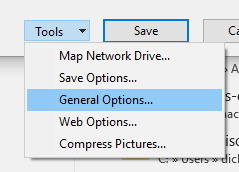
Password protect a Word document. At the Save As screen click Tools > General Options, then at the next screen enter the password you would like to use to open it the next time.


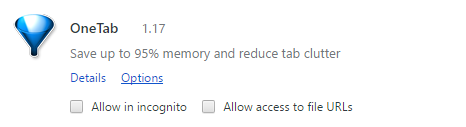
OneTab is an extension that remembers all the tabs you have open. When you open the browser again you get to restore all or some of them. Makes remembering where you left off easier and your browser starts up quickly.

If you don’t want Google Chrome to save a record of what you visit and download, you can browse the web privately in Incognito mode. Read the details here…
http://tinyurl.com/z78x33w


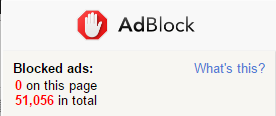
Adblock is another extension that will block ads on webpages for you. As you can see, it has blocked over 51,000 for me so far.

You can display multiple screens by resizing them to both fit next to each other and this is sometimes referred to as a split screen. If you drag one window to the right as far as it will go, Windows 10 will make it fit on the right half of the screen. Then drag the other windows to the left as far as it will go and it will be resized to fit on the other half.

Thursday, December 1, 2016

Class Summary 12-1-2016

Talked about cell phones, internet access, using locknote to secure passwords, 2FA, and more.

CyberChef: swiss-army knife conversion tool. Interesting but maybe for techies...
http://tinyurl.com/zztzf6v

Why you should start using Google Keep right away on your phone and PCs
http://tinyurl.com/h4wx684

Windows 10 Quick Tips - Editing The Send to Menu. You know the menu that pops up when you right-click on a file or folders. You can add to it, remove items, and rename them.
http://tinyurl.com/gru2bhw

How To Do Reverse Image Search - Google. Did not have much luck, but you can drag an image to the search box in Google and it will search for the image.
http://tinyurl.com/jpj9uq7

Best of Freeware 2016. Inlcudes some of our favorites and some new ones. Sandboxie might be worth a look.
http://tinyurl.com/hc6crp4

Free Books for your Kindle and… also bookbub.com
https://www.freebooksy.com

Google's new PhotoScan app will transform your prints into digital images. Google Photos is also getting a number of new editing tools so you can make more detailed tweaks to your existing images. Watch the video and this is very cool.
http://tinyurl.com/hstboyd

Friday, November 18, 2016

Class Summary 11-17-2016

Giving a computer to your grandchild
You want to give your old computer to your grandson, but you do not want him to have all your stuff. Easy to do without having to strip and reload the hard drive. In short you want to create a new user in his name and as an administrator. Then you want to restart and login as him. Then remove you as a user telling it to remove all your data as well.

Right click the start button > select Control Panel > choose User Accounts
Choose Manage another account > Add a new user in PC settings
Add someone else... > click I don't have... > click Add a user without...
Create a username and password for them
On the Settings screen click Change account type
Pull down the arrow and select Administrator, then OK


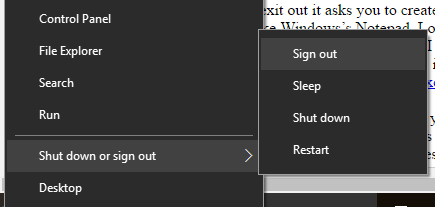
Now Sign out (Right click start > Shut down or sign out > sign out
Sign back in as the new user
Right click the start button > select Control Panel > choose User Accounts
Choose Manage another account > Manage another account


Delete this account > Delete files > Delete Account

Now your account and file have been removed from the PC. You grandson is all set to use it. All your programs are still available to him. Just your settings and documents are gone.

Locknote is a simple .exe you can download and use to safely store information. The first time you run it and exit out it asks you to create a password. Do not forget it because this is the only way into the file. Like Windows’s Notepad, Locknote is a text only simple note taking program. I use it to store my usernames and passwords. I store it in my OneDrive so I can access it from any Windows PC by simply opening my OneDrive in the cloud.
Download it at http://tinyurl.com/z2xc44j

Safehouse is a program to install on your PC that allows you to create secure vaults to store files or folders. You can have as many vaults as you wish and each one is protected with a password of your choosing. SafeHouse Explorer creates secure, strongly encrypted volumes that can secure huge amounts of data on your main system, portable devices, and even USB drives and other storage media yet remain hidden until accessed with a password. It's portable freeware that can run without being installed, even from a USB drive or the Internet, giving you access to your protected files anywhere, including public computers. It may also be the easiest tool of its type we've tried.
Download it at http://tinyurl.com/jelmq2j

Enable F8 safe mode
Right-click on start and choose Command Prompt (Admin), Then type the following.
bcdedit /set bootmenupolicy legacy (standard to remove it)
Now when you reboot, you can press F8 to get the old screen back with boot options

Remove need for password on startup
Win+R > netplwiz
Uncheck the box and Apply. You will have to type your password twice to finish.

Double File Scanner is a free portable program for Microsoft Windows operating systems that scans selected directories for duplicate files. We downloaded and tried this one in class. It is very quick to run and finds duplicate even if their names differ. Once you find the duplicates you decide which to delete--it does not do it for you. Glary has a duplicate file finder, but it did not find all the files this one found.
http://tinyurl.com/huhsbe6

A ram disk can be quite useful for certain tasks as it simulates hard drive storage during sessions but is significantly faster than hard drive storage. This makes it ideal for applications that benefit from faster loading and saving processes. A ram disk stores data temporarily by default, which means it can also be used to store temporary files.
http://tinyurl.com/hxlwmzd

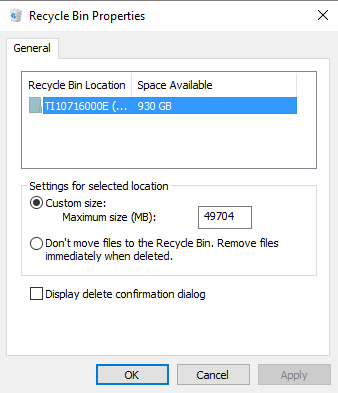
How To Enable Delete Confirmation Dialog In Windows 10/8.


Right click on the recycle bin and select Properties. Check the box Display delete…


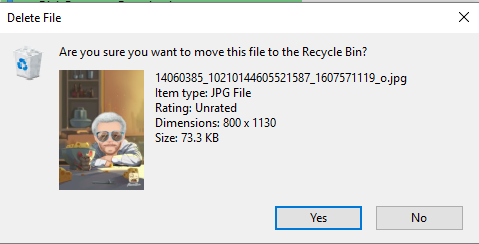
Now when you go to delete a file or folder, a confirmation screen says “Are you sure?”
http://tinyurl.com/z4jqb94


How to download YouTube videos:
There's a simple trick, just add the letters dl to the url of the video on youtube and press enter to get sent to the downloader’s page where you choose the quality of video you wish or mp3 for audio. The dl must go after the www. Here are a couple of other ways...
http://tinyurl.com/hjxb7lg MP4 Video
http://tinyurl.com/heaz7h8 MP3 Audio only

Friday, November 11, 2016

Class Summary 11-10-2016

Talked about the current “deal” at Comcast. I called them and they reduced my monthly charge and increased my speed. Always have a good connection with them both for my internet and when I call them. One change coming soon is a cap on our data of 1tb. Only 2% of their users are exceeding that and my usage is less than 50gb per month. I stream Netflix every day. I do not expect this cap to be an issue for any of us.

Microsoft Security Scanner. This is a download from them and it looks for viruses and malware and spyware. It is only good for 10 days afterwhich you need to download a new copy. It will run even if you are using an anti-virus other than their Defender.
http://www.microsoft.com/security/scanner/en-us/default.aspx

Check your data breach Status. Many companies over the years have had hackers grab bunches of usernames, passwords, and email addresses from their databases. This site scans a database of known hacked data to let you know if you are part of those hacked addresses. If you are, you should change your passwords.
www.haveibeenpwned.com

10 minute email address allows you to have an email address that is only good for 10 minutes. You know those sites that only allow you to pass if you give them your email address? Then they send you emails every day. This site creates a temporary email address you can give them. They can verify it and then it will no longer be valid.
www.10minutemail.com

Speaking of passwords. Have you made a list of sites and passwords for your heirs? We have all made a will and placed it in our safe deposit box. We may even have given a key to our executor and added them to the box. But a lot of our important stuff is now online. Have we left instructions in our box as to what sites they need to get into, like financial and insurance sites, and usernames and passwords they need for access?

Secure sign on is more than having a password. Some sites will ask an additional question before letting you in. This makes access a little more secure, 2FA is even better. You have probably experienced this on site such as Microsoft. To get in you enter your username and password. Then they give you a choice of using the email address you registered with them or the cell phone number. They send you an email or text you a number, usually 4-6 digits long, that you then enter in the given box on the screen to finally log in and access your secure data.
www.twofactorauth.org

Let Google scan your files. Google drive scans all files for known viruses automatically

And if you upload a files to your g-drive and open it any issues will be isolated in the cloud and not have any effect on your PC

Good idea to create a password reset CD or USB boot media. Then if you forget your password to get into Windows, you can boot from this media and create a new password. Keep it in a safe place because anyone could use it to change your password.
http://tinyurl.com/6mq7tzm

Ubuntu OS instead of Windows. There may come a time when Microsoft tells us we have to pay for Windows 10 by sending them a monthly fee for using it. This is just conjecture on my part. They have not implied anything and have in fact said it will be free. There are a number of other choices out there for Operating Systems. Apple has there own but you need an Apple computer to use it. Google has there own but you need a Chromebook to use it. Neither OS will run Windows programs so you have to find others that will do the same job for you. Then there is Linux. It is an open source OS meaning that there will never be a charge for it. There are many versions of it and the one that seems to be very popular is Ubuntu. You can download it to a CD and try it out before ever installing it. And you can even install it along with Windows. At boot time you are given the choice to choose Windows or Ubuntu.
www.ubuntu.com

Lubuntu is a popular version for older machines and has a file explorer very similar to Windows. Works as a great replacement for Windows in those old and slow XP machines---or even Vista and 7. Lubuntu is a fast, energy saving and lightweight variant of Ubuntu using LXDE. It is popular with PC and laptop users running on low-spec hardware.
http://lubuntu.me/

A great way to download and install popular software is to use Ninite. You checkoff the programs you want and an installer is downloaded to your PC. Run it and the programs are downloaded and installed without any additional surprises--no added programs. For past notes on it put this in our browser address line and hit Enter:

ninite site:dickevanstraining.blogspot.com or just go right to www.ninite.com

Dual Boot means being able to have more than one operating system on the same computer. You get an option when booting to choose the one you want to use. Both can access your entire hard drive. This would allow you to have Window 10 in one partition and Windows XP in another letting you run some of those older programs, perhaps even ones that will access your floppy drive. (have not tried this out).

Partition Magic from EaseUS is an easy way to partition your hard drive to enable you to dual boot. You can get it from http://www.partition-tool.com/. Having ia second partition can also be useful when you have a lot of unchanging data on C: like old pictures or past documents taking a lot of space. Create another partition and move all that stuff to it. This frees up space on C: and makes you image backup of C: much quicker. Why backup all that never changing data all the time?

Making Desktop Shortcuts is easy and necessary in Window 10. When programs install in 10 they may not create a shortcut on the desktop. Locate the .exe file for the application. To locate the .exe press Win+Q and type the name of the program. It will appear in the list above. Right click it and choose Open file location. Then right click it. Then choose Send To > Desktop (create shortcut). Done. A shortcut will be on the desktop.

Maintenance White Paper updated in 2016 by Dick Evans
http://rwevans.com/ComputerMaintenance.pdf \


Sunday, November 6, 2016

Class Summary 11-3-2016

What does sync mean?
It is short for synchronize and is used in programs like OneDrive, Mozy and Dropbox (among others) to mean copies are made the same on your computer and in the cloud. Also happens when you have your cell phone set to send all pictures you take to Google Photos. What is on your phone is synced to your cloud account.

To use your OneDrive account you must have a Microsoft Live account. If you are on Windows 10 you probably already have one as the normal installation of 10 had you create it and that is what you login to your PC with. What you store in your PC’s OneDrive folder or subfolders will be uploaded to your OneDrive cloud. Everyone gets a free account with 5gb of space. When you change that file on your PC, it is changed in the cloud. If you sign into your Live account and make a change from another computer, when you log back on your PC, the new file is sent to your PC. The files are kept in sync.

This is true with Dropbox as well. Save to the Dropbox folder and it is save in the cloud. Mozy is a backup that keeps what has been uploaded to the Mozy cloud current by syncing from your PC to the cloud two or more times a day. Both have a free amount of storage (2+gb) and you can purchase more.

If you are still on Windows 7, you will have to download and install OneDrive. Mozy and Dropbox do not come with Windows and must be downloaded and installed. Here are some links:

Mozy Backup http://www.mozy.com/free (use code GFBU22)
Drop Box http://tinyurl.com/b87mha8
OneDrive http://microsoft-onedrive.en.softonic.com/

Why do we have to create a boot disk when making an image backup?
There are two image backup programs we have been using. Both are free. They are EaseUS and Macrium. Instructions for using Macrium Reflect are on the club site at www.cccgc.net. These programs allow us to make an image or a complete copy of our PC; data, programs, settings, favorites, the operating system, etc to an external disk drive. We do this as insurance. If or when our PC fails, we can use this image file to rebuild our hard drive back to what it looked like the day we created the image. However, to be able to restore the system we have to be able to boot the dead PC. We do this by inserting a boot disk or USB flash drive that contains a mini-operating system and the software to rebuild the PC from the image file on the external drive. When we run the image creation program one of the options in that program is to make a boot disk. This is an important step. Without it, you cannot recover from an image. Details on how to make it in Reflect can be found on the club site.

What are these .ini files on my desktop?
These are informational files used by programs to remember options you have taken when running them. They are hidden files and need to be there. However, there is no good reason for you to be displaying hidden files. Although it is fine to delete them, it is better if you leave them alone as they contain information you will only have to enter again when you run the program that create them.


Better to open File Manager (Win+E) and the View ribbon. Uncheck Hidden items to no longer see those pesky .ini files.

Bookmarks and Favorites
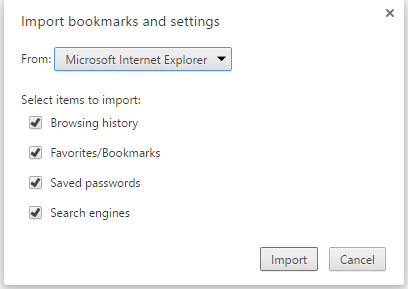
These are terms used by browsers for saved links to websites. When you frequently access certain sites or are on one you would like to easily get back to, click the star to the right of the address bar and you can save that link. If you were using IE and have elected to switch to Chrome (my favorite browser), you can easily import your favorites from one browser to the other.

Open chrome://settings/importData


Click Import and the items will be copied from IE to Chrome. This can be done in any browser. So if you are starting to use Edge, you can import your items from any other browser into Edge. Importing does not remove them from the other browser.

CCleaner
I mentioned that this popular cleaning program is now available on your cell phone. Both for iPhone and Android. Just find it in Apps or the Play Store. Works great.

Should I Remove It?
We have lot’s of programs on our PCs. Some are questionable and we may wonder if we really need them. This programs scans your PC and lists the programs you have (non-microsoft) and gives you information about them and what other users have decided to do--keep or install them. Tried it in class and it looks good.
http://www.shouldiremoveit.com/